
















RCON lets a tool control your Squad server from outside the game. There is one shared password, and anyone who has it has full console access to the server. To cut one person off, change the password and restart the server. To connect, a tool needs three things: your server’s address, the RCON port and the RCON password. On the ArthOS panel the password is under Passwords in the Config Editor, and the port is on the Startup page.
In the ArthOS panel
- Open Startup.
- Find RCON port (1). It is read only. The panel sets it from a port your server owns. It is a TCP port. Use this number in your tool.
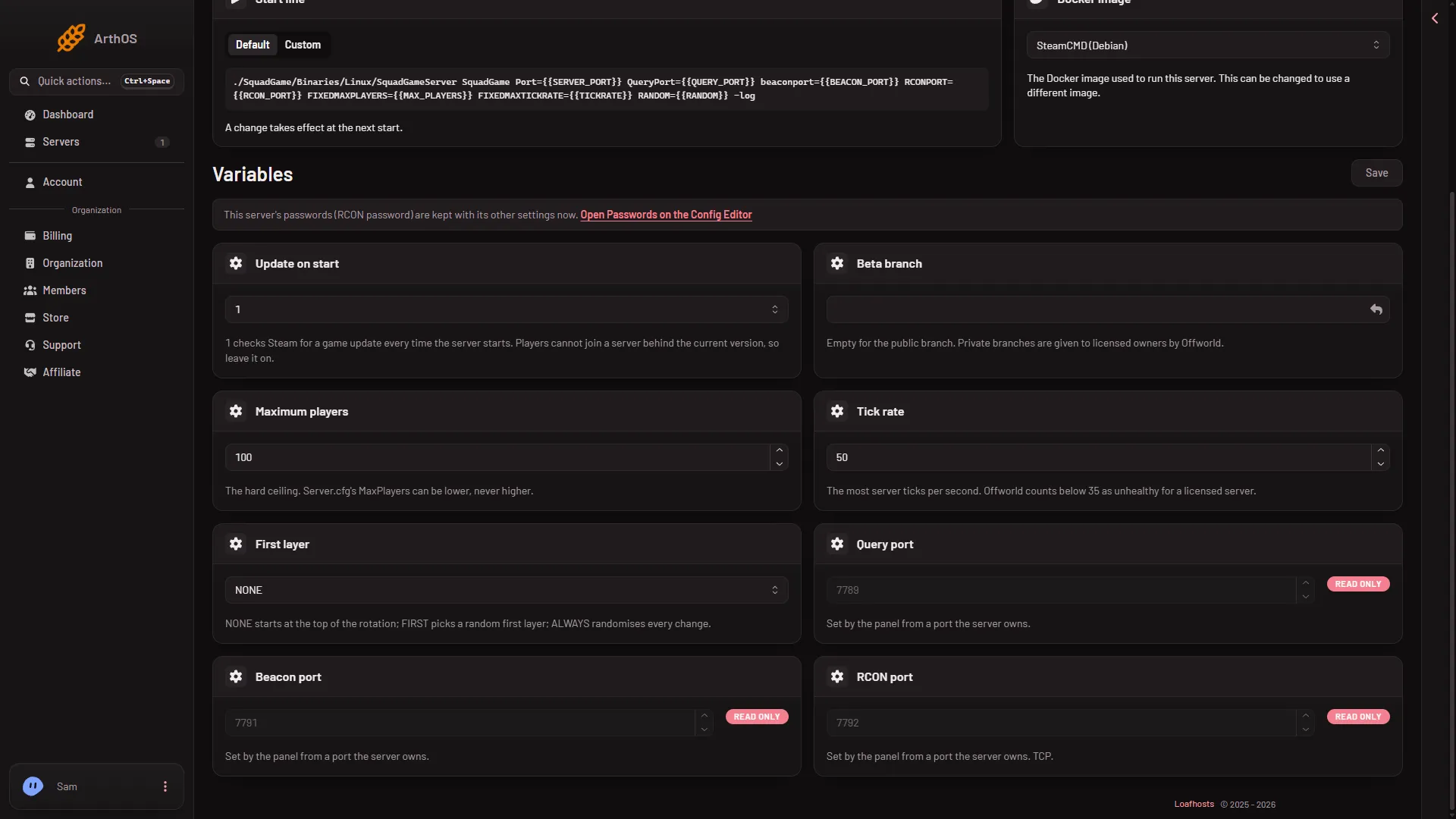
- RCON port, read only
- Open the Config Editor tab and choose the Passwords button (1).
- Find the row RCON password (2). This is the password your tool uses. A new server starts with a random one. Choose the eye button to show it and Copy (3) to copy it, or type your own.
- Choose Save in the bar at the bottom of the page, then restart the server. The change applies at the next start.
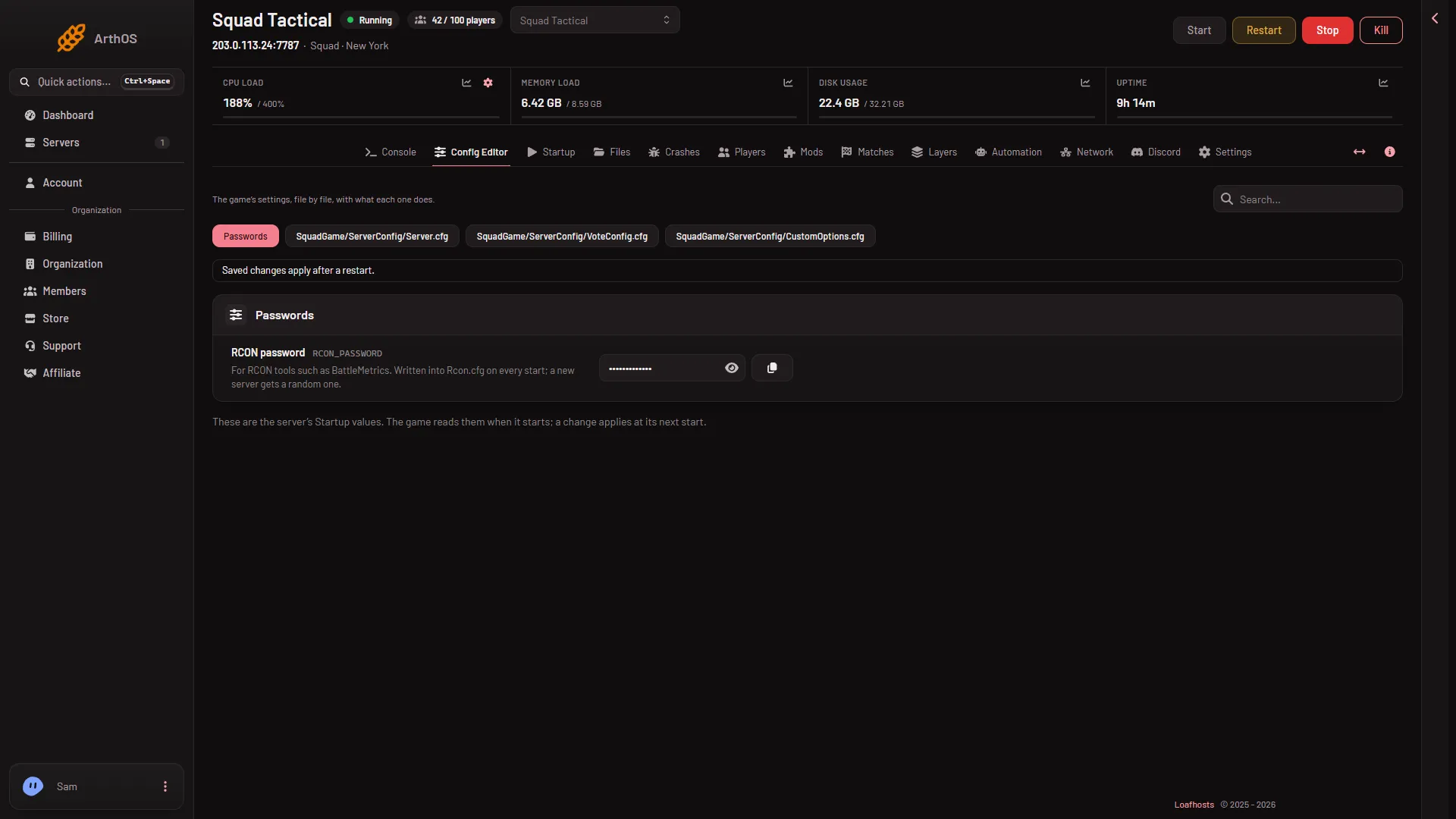
- Passwords button
- RCON password
- Copy
The Network page lists your server’s address and ports, if you need the address.
The panel writes Rcon.cfg for you
Squad reads its RCON settings from SquadGame/ServerConfig/Rcon.cfg. On the panel, you do not edit that file. At every start, the panel writes three of its lines, the port from Startup and the password from Passwords:
IP=0.0.0.0Port=followed by the RCON portPassword=followed by the RCON password
A change you make to those lines in Files is overwritten at the next start. Change the password under Passwords instead. The port is the one shown on Startup. The Config Editor does not offer Rcon.cfg.
The panel uses RCON too
The Players page, Automation and the match controls all reach the game over RCON. The panel uses at least one connection for this. The game allows 5 connections at a time by default (MaxConnections=5 in Rcon.cfg), so your own tools have 4 or fewer left. If a tool is refused for too many connections, close one of the others.
If you change the password, the panel’s connection is refused until the server restarts. It says that Rcon.cfg is written when the server starts.
Connect a tool
Each RCON tool has its own page that says where to type the address, port and password. Follow that page, and use the port from Startup and the password from Passwords. This guide does not cover any one tool.
By hand
If you host Squad yourself, edit SquadGame/ServerConfig/Rcon.cfg:
IP=0.0.0.0
Port=21114
Password=choose-a-long-password
MaxConnections=5
SecondsBeforeTimeoutCheck=120- If
Passwordis empty, RCON stays off. IP=0.0.0.0binds RCON to the server’s default address. If the machine has several addresses, put the one you want here.Portis the RCON port. 21114 is the stock value for a self-hosted server. On the panel, the port is picked for you; the Startup page shows it.MaxConnectionsis how many connections the game allows at once.SecondsBeforeTimeoutCheckis how long the game waits without hearing from a connection before it checks the connection is alive. The wiki says it accepts 30 to 3600.
The wiki also shows launch arguments for the same settings: RCONIP, RCONPORT, RCONPASSWORD, RCONMAXCONNECTIONS and RCONSECONDSBEFORETIMEOUTCHECK. Restart the server after any change.
If it does not work
- The tool says the password is wrong. Check the password under Passwords in the Config Editor. If you changed it after the last start, restart the server first.
- The tool cannot connect at all. Check the port is the RCON port from Startup and the tool uses TCP. The server must be running.
- The tool is refused with too many connections. The game is at its limit. Close an idle connection.
- A change you made in
Rcon.cfgkeeps reverting. The panel rewritesIP,PortandPasswordat every start. Use Startup for the port and Passwords for the password.
More about the game: Squad servers.
Sources: squad.fandom.com: Server Configuration, github.com: Rcon.js