

A file or folder you delete in Files goes to the Trash first. It stays there for 3 days, and Restore puts it back. This covers storage_1, a mod folder such as @1559212036, or any single file. Stop the server before you restore a world folder, so the game does not write a new one while you work.
Before you delete
In Files, the row menu item is Move to Trash. A box titled Move to Trash says the item can be restored for 3 days. It also has a switch, Delete permanently instead of moving to the trash. Leave it off.
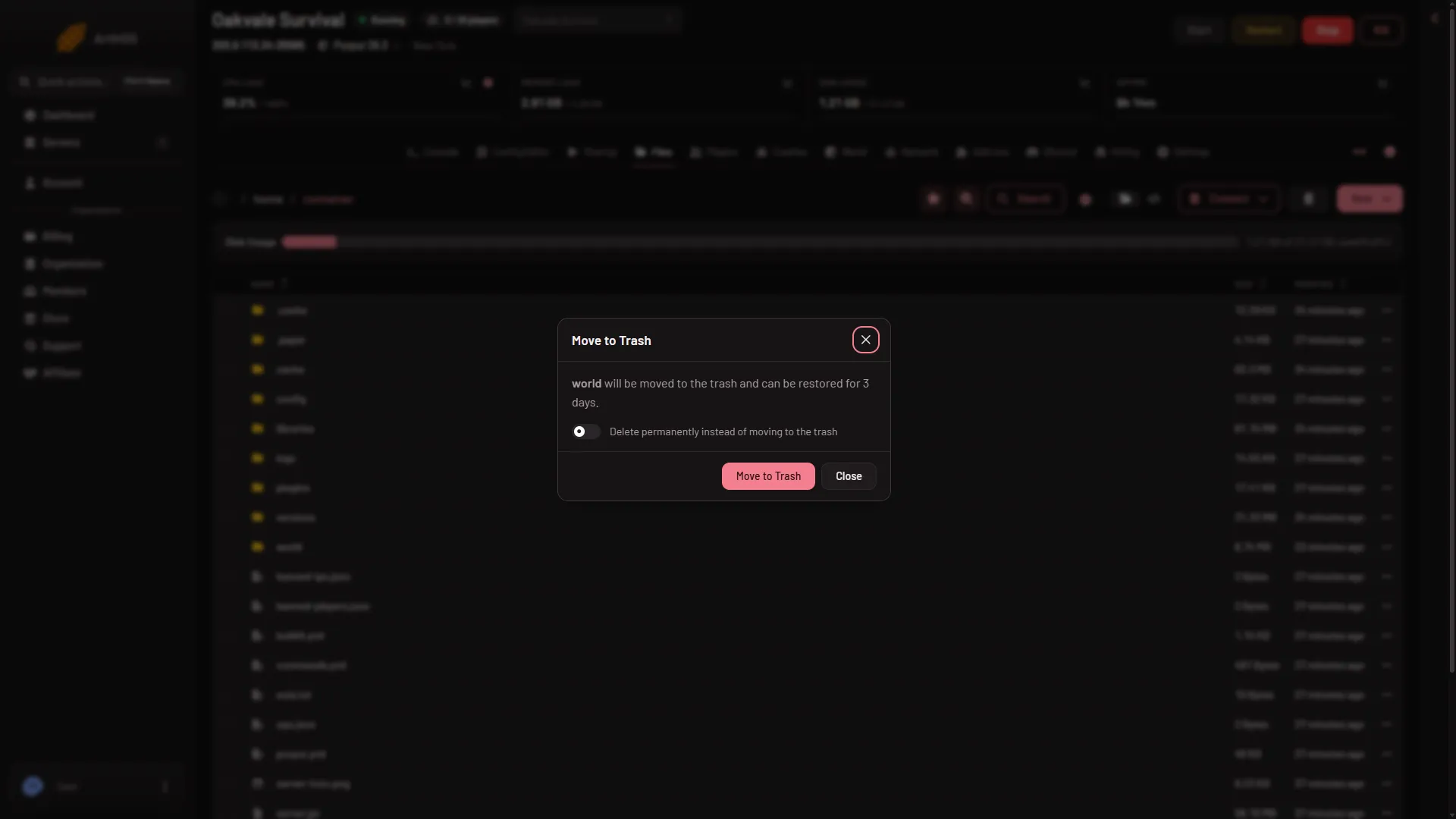
- Move to Trash
- Kept for 3 days
- Delete permanently instead
The box is the same on every game. The title (1) says Move to Trash. The text (2) names the item and says how long it is kept. The switch (3) deletes permanently.
Restore it
- Stop the server. The game writes
storage_1. - In Files, choose the Trash button on the toolbar. It is an icon with no text.
- Find the item. Original Location says which folder it came from, and Deleted says when.
- Open the row menu and choose Restore. To restore several, tick them and choose Restore in the bar that appears.
- Go back to Files with Back to Files and look for the item.
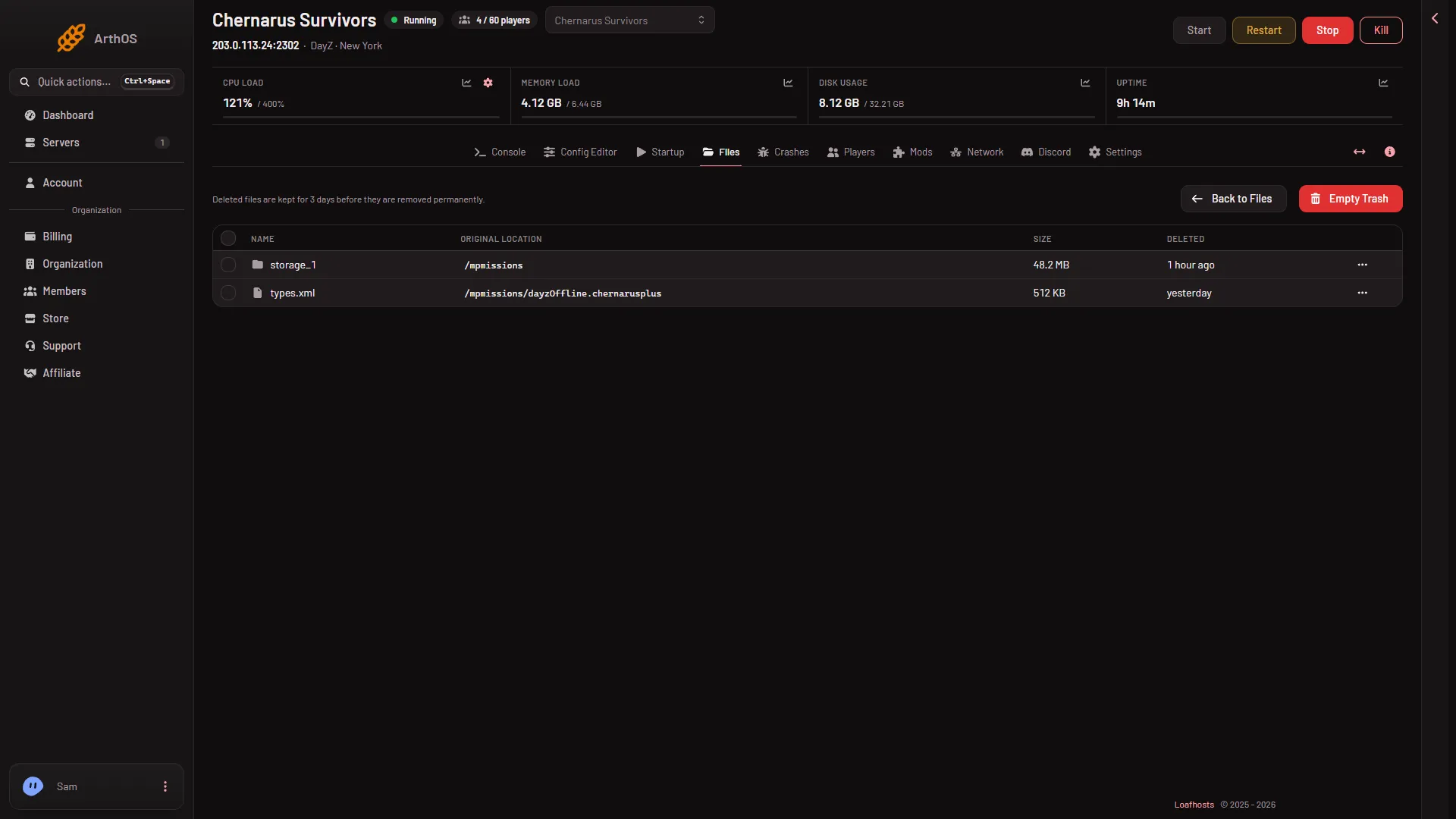
- How long files are kept
- A deleted folder
- Where it was
- When it was deleted
The line at the top (1) says how long deleted files are kept. Each row (2) is one item, with its Original Location (3) and the time it was Deleted (4).
Original Location names the folder each item came from.
A message “restored” appears with an undo. Restore to… puts it in another folder, and you can give it a new name.
DayZ folders
- The world.
storage_1sits inside your mission folder, for examplempmissions/dayzOffline.chernarusplus/storage_1. Restoring it puts the folder back as it was when you deleted it. See wipe and save files. - A mod folder. Mod folders are named
@plus the Workshop number, for example@1559212036. After a restore, a folder that is not on the Mods page list shows under On the server, not loaded. Choose Put on the list there. - A file such as
types.xml. It goes back to the folder in Original Location.
If the server already made a new storage_1
If the server started after you deleted the folder, it made a fresh storage_1. Restore then says “Something already exists where the following would be restored.” and opens Resolve Restore Conflicts. For each item you can choose Skip, Overwrite or Rename. Skip is the starting choice. The Restore button at the bottom stays grey until you set at least one item to Overwrite or Rename. Rename shows a New name box with a copy name already filled in. This recipe uses Rename because what Overwrite does to a whole folder is not known.
- Stop the server.
- Choose Rename and give the old world a new name, such as
storage_1_old. - Back in Files, rename the new
storage_1tostorage_1_new, then renamestorage_1_oldtostorage_1. - Start the server.
What does not go to the Trash
Only a delete made in Files is kept. These are gone at once:
- Delete files under On the server, not loaded on the Mods page.
- A delete where you turned on Delete permanently instead of moving to the trash.
- Delete Permanently and Empty Trash on the Trash page.
- A backup restore or Reinstall Server with the switch to delete all files first. The panel says that cannot be undone.
The way back for those is a backup. See back up and restore.
If it does not work
- There is no Trash button. The Trash is off for this server, or your role cannot read files.
- Restore says it is refused. Your role is limited by a file rule on this server. The owner, or a member the file rule does not limit, must restore it.
- The item is not in the Trash. More than 3 days passed, someone emptied it, or the server was near its disk limit and the panel cleared the oldest items. Use a backup.
- Deleted files still use disk space. The Trash counts toward the server’s disk. Empty Trash frees it at once.
More about the game: DayZ servers.
Sources: Bohemia wiki: Server Configuration