




Open a player’s page on the Players tab and click any slot. A panel opens beside the grids. There you can rename the item, change its enchantments, lore and wear, move it, or remove it. An empty slot lets you put a new item in. It works for players who are offline too.
Change an item
- On the Players tab, click the player’s name. The steps to open a player are in see a player’s inventory.
- Click the item on the Inventory or Ender chest tab.
- Change what you want in the panel.
- Choose Save changes (3).
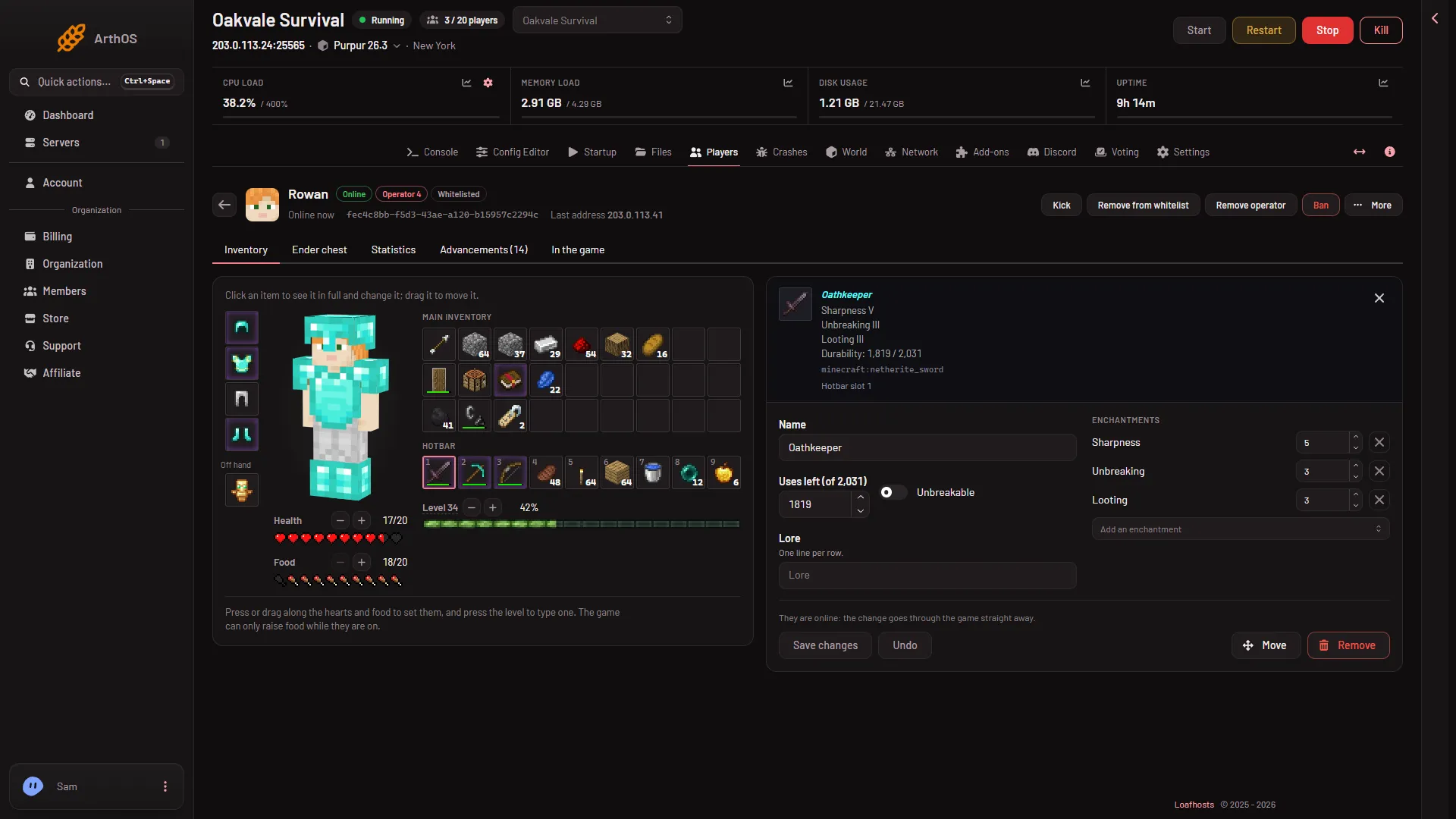
- Name
- Enchantments
- Save changes
- Move
- Remove
The panel shows the item as the game shows it, with the slot’s name, for example “Hotbar slot 1”. Use the X to close it. The panel also has an Undo button.
What you can set
- How many. From 1 to the item’s stack size. It is hidden for items that do not stack.
- Name (1). Up to 50 characters.
- Uses left (of N) and Unbreakable. Only for items that wear out.
- Lore. The lines under the name. “One line per row.”
- Enchantments (2). Each has a level box and an X to take it off. Under Add an enchantment, the ones that fit this item come first, each with its highest normal level. A group named “Not normal for this item” follows them.
- Armor trim, with Pattern and Material. Only for armour that can have one.
Move an item
Drag it to another slot. Or open it and choose Move (4), then click the slot it should go to. If that slot is full, the two swap. On the Ender chest tab you can move items between the ender chest and the inventory. The armour slots and the off hand take items too.
Remove an item
Choose Remove (5). The panel asks “Remove (name)?” and says it is deleted from the slot and cannot be undone. A box or shulker box also deletes what it holds. Take a backup first if the item matters.
Put a new item in an empty slot
- Click an empty slot. The panel says Empty slot.
- In Put an item here, search for the item.
- Set How many.
- Choose Put it here.
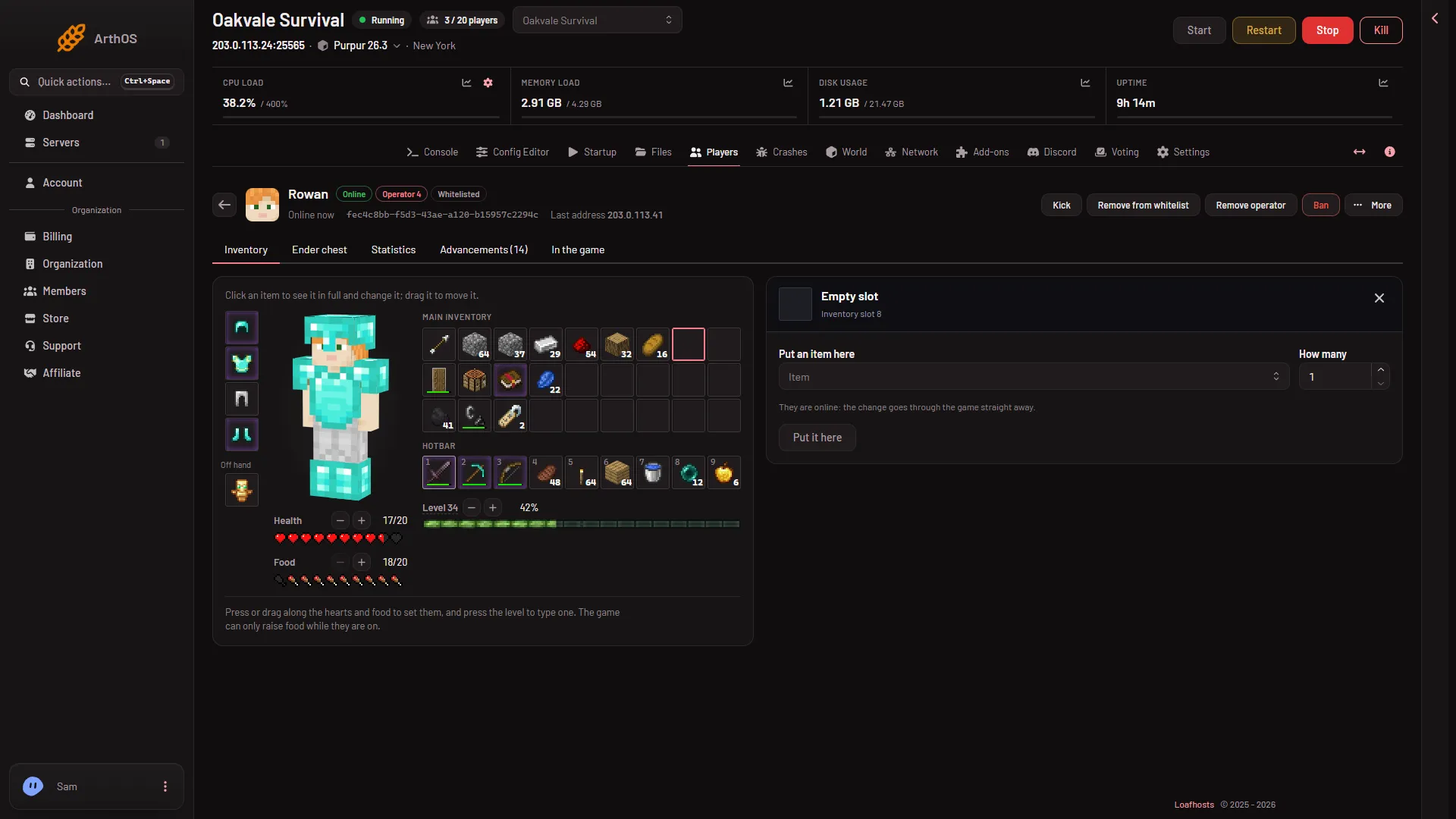
- Put an item here
This works for an offline player. The item goes into their save file. For an online player, Give on the In the game tab also works: see give items. Give cannot set a name or enchantments, so put the item in a slot first and then change it here.
When a change applies
- Online. “The change goes through the game straight away.”
- Offline. “The change goes into their save file”, and they see it when they next join. The panel keeps a copy of the old save file beside it with
.arthos-bakon the end, and it reads the file back to check the change held. Whether the server may be running while you edit an offline player is not checked here.
Your role must be allowed to change players in the game. Without it you can look at an item but not change it, and an empty slot says “Nothing here.”
If it does not work
- “This item changed in the game while you were editing it.” The player moved or used it. Choose Show it as it is now and try again. The server refuses a change to a slot that holds something else, so nothing is lost.
- Nothing to pick in the item list, or no editing. The editor needs a server on Minecraft Java 1.21.4 or newer.
- “The server is starting or stopping.” Wait until it has finished.
- The change did not go in. If an offline save did not hold the change, the panel puts the old file back and tells you.
- Too many changes. The panel allows 60 item changes a minute on one server.
More about the game: Minecraft servers.