






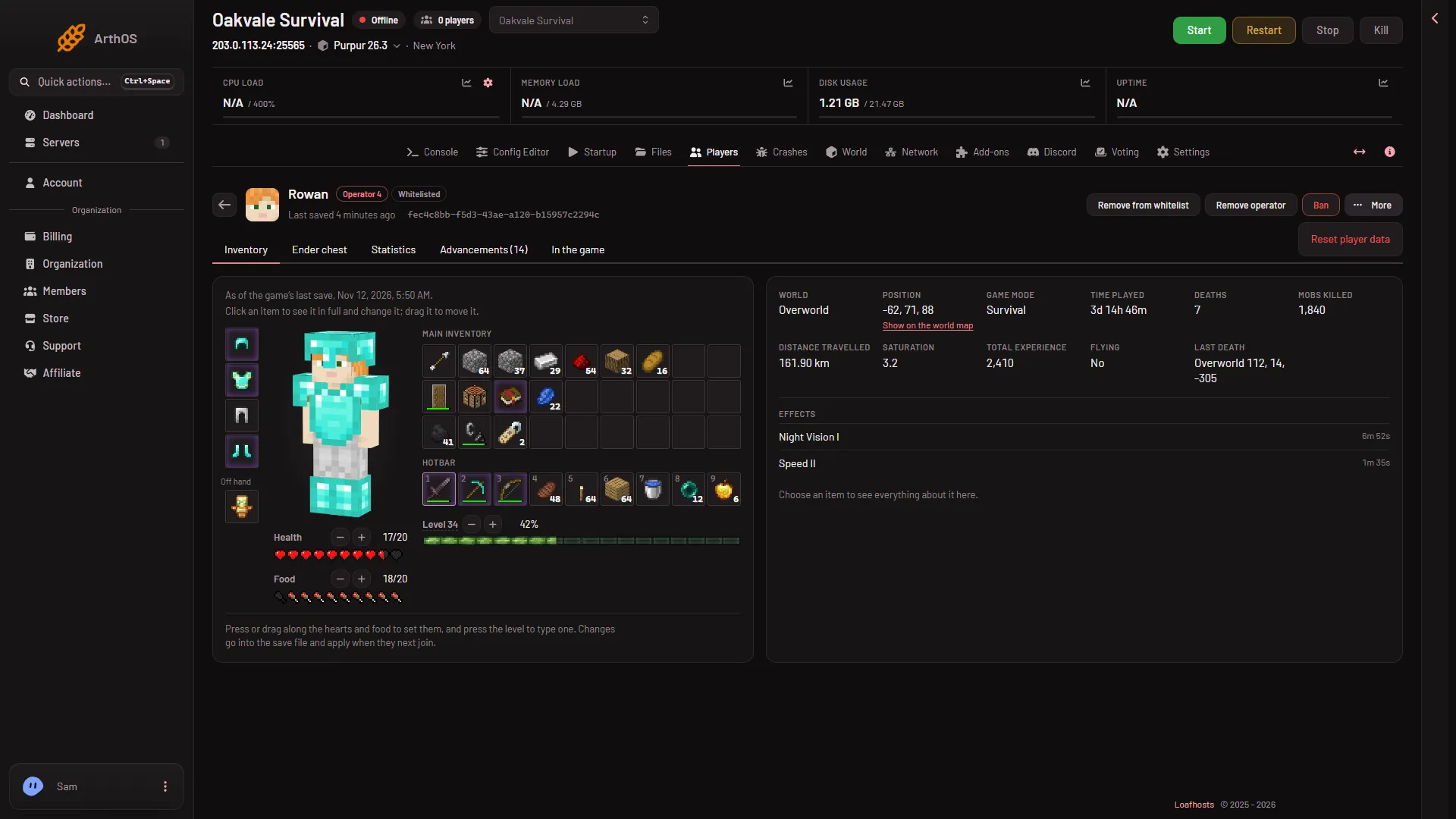
To reset one player, stop the server, open the player’s page in the Players tab, then choose More and Reset player data. Their inventory, position, statistics and advancements start again the next time they join. The world and everyone else stay as they are.
In the ArthOS panel
-
Take a backup if the player has something you may want back. See back up and restore.
-
Choose Stop at the top of the page and wait until the server is stopped. The panel only resets a player on a stopped server, because a running game would write the player’s data straight back.
-
Open the Players tab and click the player’s name. Their own page opens. While the server runs, the Reset player data item in the More menu reads “Stop the server to reset this player’s data.” and cannot be used. A name that never joined has no UUID and no Reset item.
-
Choose More, then Reset player data (1).
- Reset player data
A box opens over the page and asks “Reset (name)‘s data?”
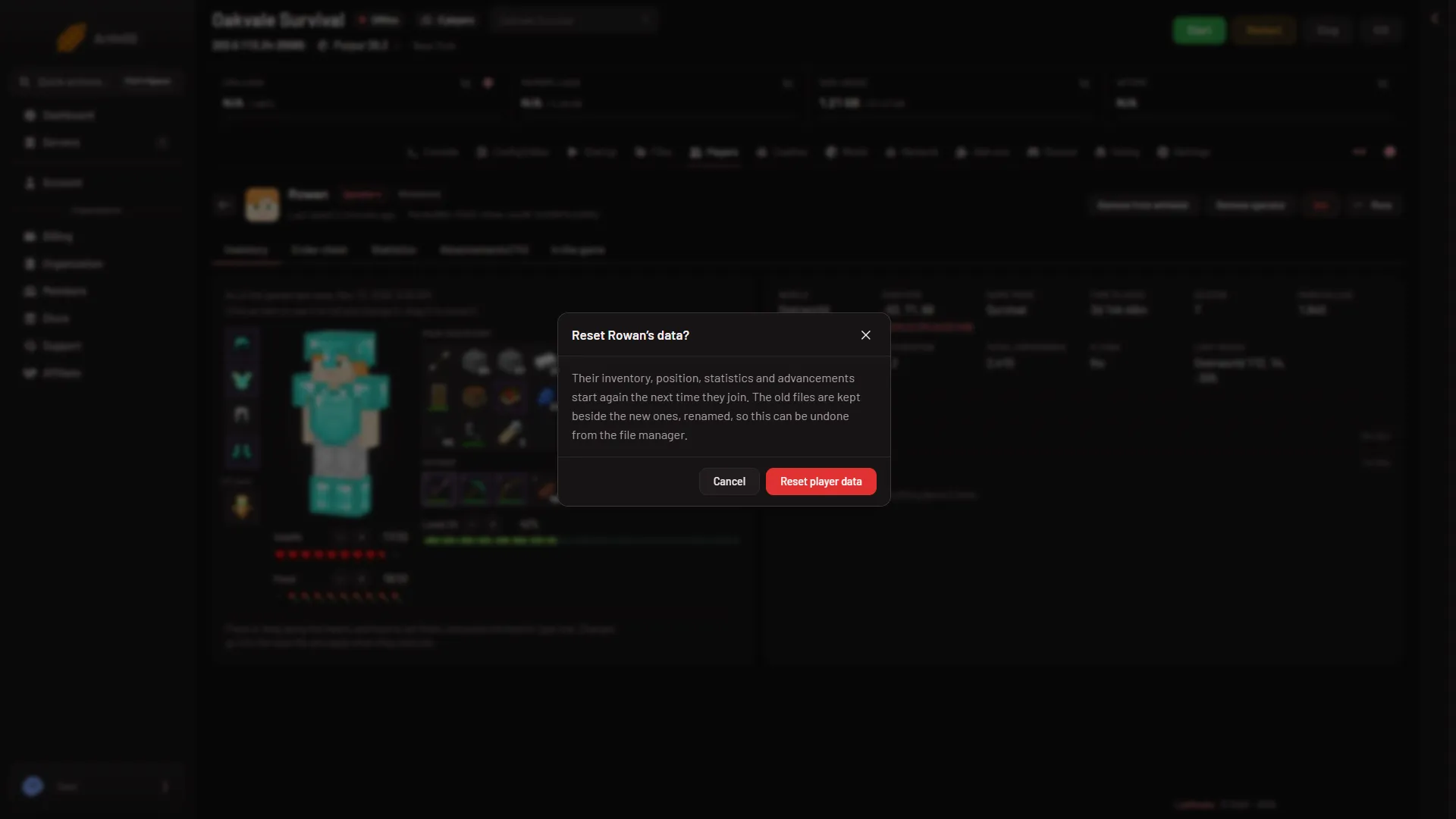
- Read the question
- Reset player data
-
Read the question and the text under it (1). It says: “Their inventory, position, statistics and advancements start again the next time they join. The old files are kept beside the new ones, renamed, so this can be undone from the file manager.” Choose Reset player data (2) to confirm. Cancel closes the box and changes nothing.
-
The panel says “Reset. Files set aside: ” and a number. Start the server.
If the player has no saved data, the panel says “this player has no saved data on the server”.
What is renamed
The panel adds .arthos-reset- and the date and time to each file’s name. It renames up to four files for the player, named by their UUID (see find a player’s UUID):
| File | Holds | Folder on 26.1 and newer |
|---|---|---|
<uuid>.dat and <uuid>.dat_old | Inventory, position, health, ender chest | players/data |
<uuid>.json | Statistics | players/stats |
<uuid>.json | Advancements | players/advancements |
The folders are inside the world folder. Older versions keep them in playerdata, stats and advancements in the world folder. The world folder is world unless you changed World folder in the Config Editor.
Undo a reset
Stop the server. In Files, open the folders above. Delete the new <uuid>.dat the game made (in Files it goes to the Trash first, where Restore puts it back for 3 days), then rename the file ending in .arthos-reset- and a number back to its first name. Do the same for the stats and advancements files. A backup restore is simpler if you made one.
By hand
Without the panel, use Files or your own file tool.
- Stop the server. A running game keeps players in memory and writes them again.
- Find the player’s UUID with this guide.
- Open
world/players/data,world/players/statsandworld/players/advancements(older versions:world/playerdata,world/stats,world/advancements). - Rename each file that begins with the UUID, for example to add
.oldat the end. Renaming keeps a copy. Deleting does not. - Start the server.
You do not have to remove all three. Remove only the .dat file to reset the inventory and position. Keep the stats and advancements if you want those.
If it does not work
- The menu item is grey. The server is not stopped. Stop it and wait for the status to change. It is also grey while the server is starting or stopping.
- The item is not in the More menu. Your role may not allow it. Ask the server owner.
- The player is the same after they join. The server was running when you changed the files, or you reset another UUID. Check that the name matches the UUID on the player’s page.
- The player has a different UUID. If online mode changed, the game treats them as a new player. See find a player’s UUID.
- There is nothing to reset. The player has no saved files on the server yet.
To start the whole world again, see reset the world. More about the game is on the Minecraft page.