




A file or folder you delete in Files does not vanish at once. It moves to the Trash, and stays there for 3 days at the moment. Open the Trash, choose Restore, and it goes back to the folder it came from. This works for the world folder, a plugin jar, server.properties and any other file. If you used Remove on a plugin page, the file is not in the Trash: see What is not in the Trash.
Check that it is in the Trash
- Open Files.
- Choose the Trash button, the bin icon on the right of the toolbar, next to New.
The Trash page lists each deleted item with its Name, Original Location, Size and when it was Deleted. The line at the top says how long files are kept.
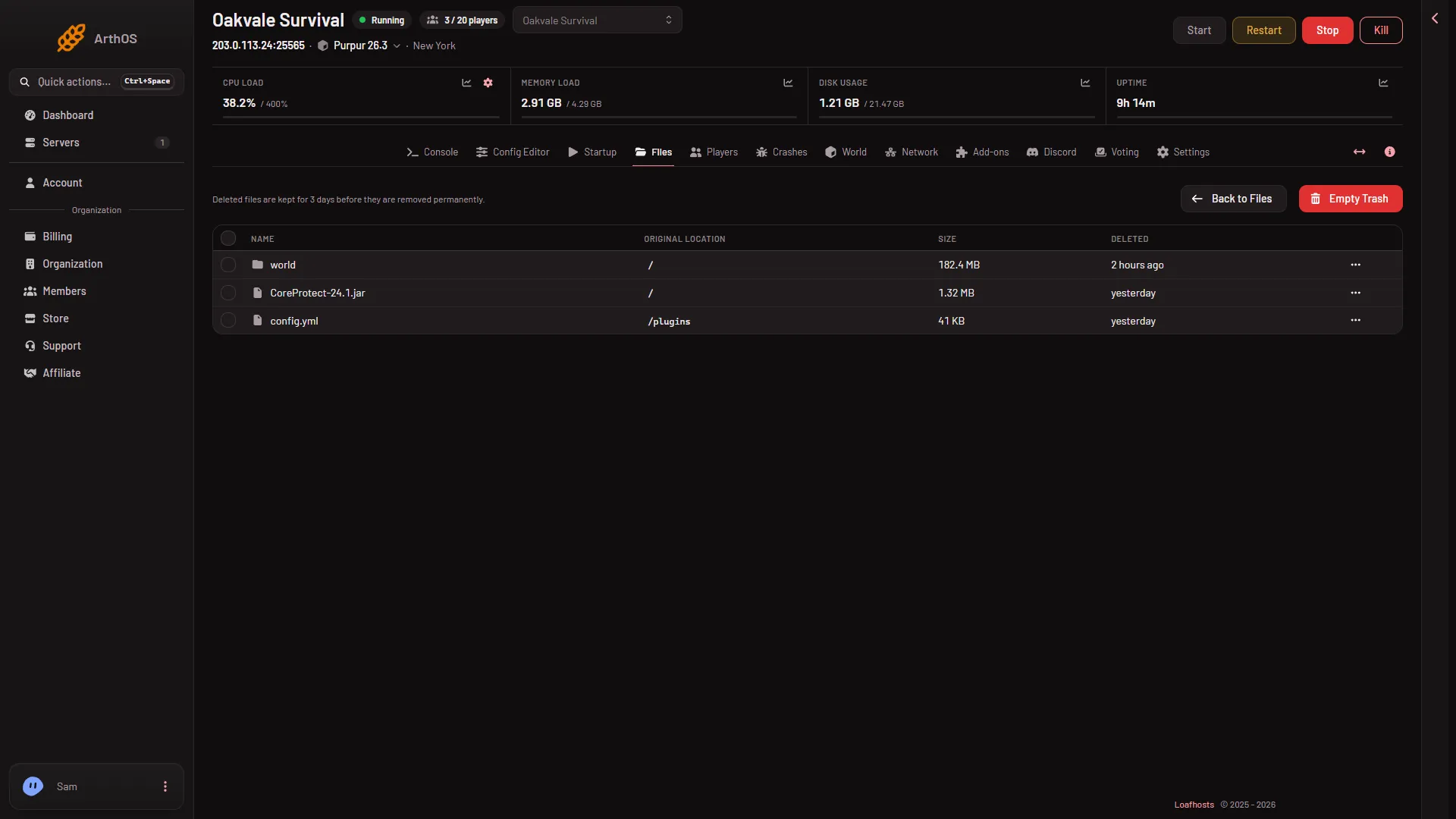
- How long files are kept
- A deleted folder
- Back to Files
- Empty Trash
Put it back
- Stop the server first if you are restoring the
worldfolder. A running game writes to its world and can break a folder put back under it. - On the Trash page, right-click the item, or press the three dots at the end of its row. A menu opens.
- Choose Restore (1). The item goes back to its Original Location.
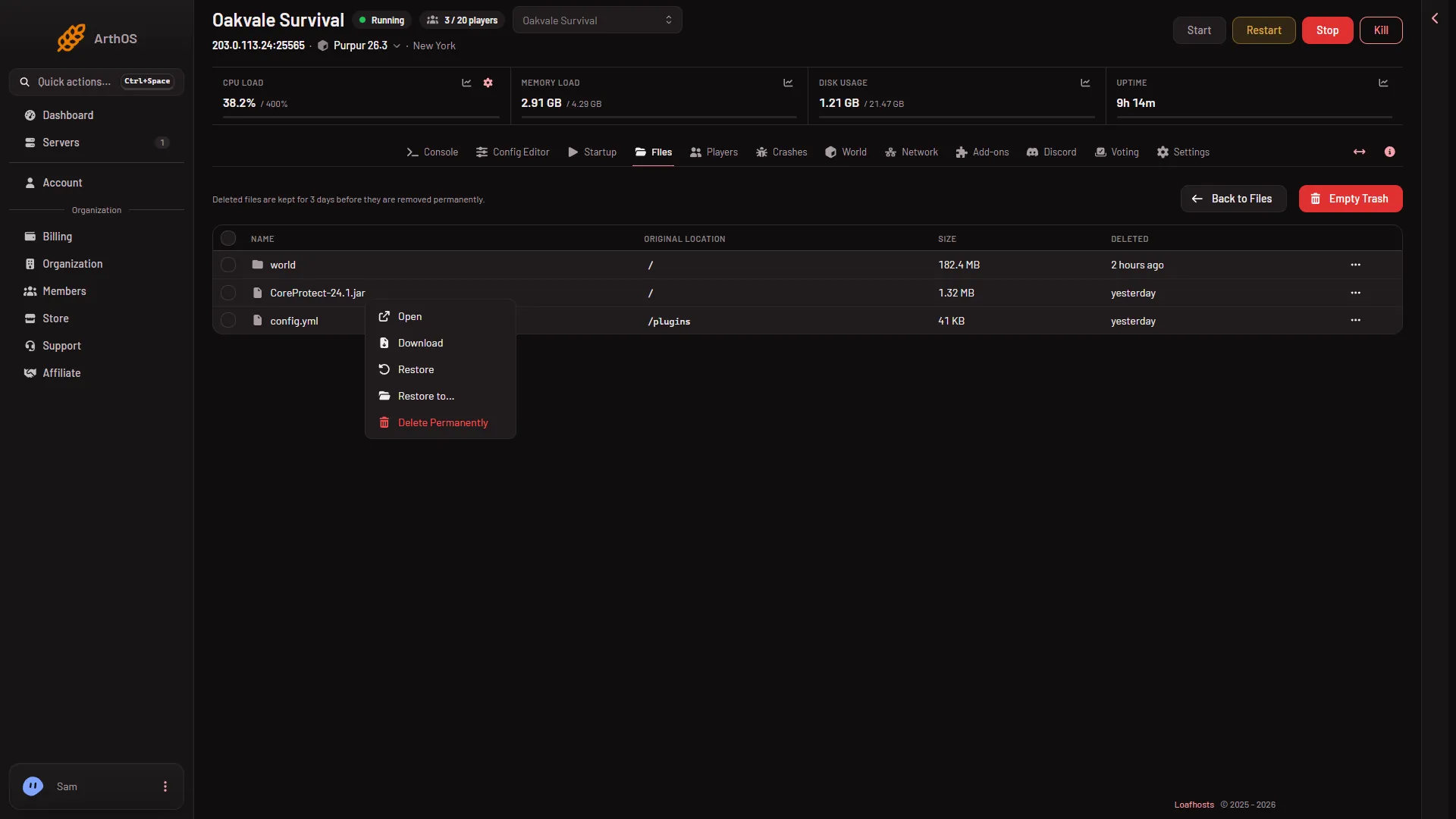
- Restore
- Restore to...
- Delete Permanently
The menu also has:
- Open: look inside a folder in the Trash. You can take out one file with Restore or Restore to….
- Download: save a file to your computer (not offered for a folder).
- Restore to…: put it in another folder, or under another name.
- Delete Permanently: remove it permanently. This cannot be undone.
You can tick several rows and restore them together.
If something is already at the original place, a window “Resolve Restore Conflicts” opens. For each item choose Skip, Overwrite or Rename. Skip leaves the item in the Trash. Skip is the starting choice. The Restore button at the bottom stays grey until you set at least one item to Overwrite or Rename. Rename shows a New name box with a copy name already filled in.
How you delete to the Trash
In Files, the row menu item that deletes reads Move to Trash. A dialog says it “can be restored for 3 days”.
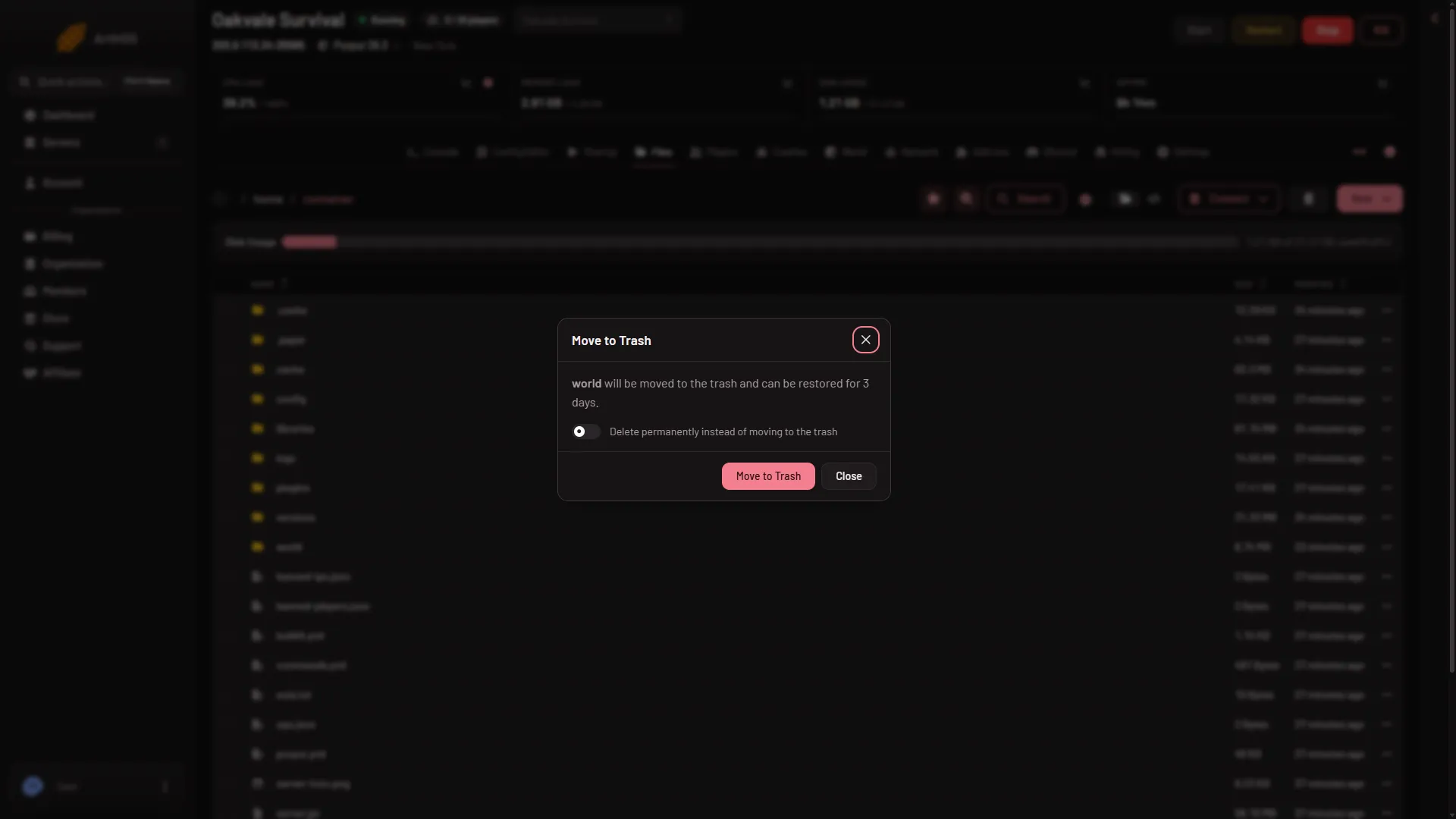
- Move to Trash
- Kept for 3 days
- Delete permanently instead
Leave the switch Delete permanently instead of moving to the trash off. If you turn it on, the file is deleted for good.
What to know
- Trash counts toward your disk. A big world in the Trash still uses space. Delete Permanently or Empty Trash frees it at once. The panel also clears the oldest entries by itself when the disk is nearly full.
- After 3 days it is gone. Restore it before then.
- Your role needs the permission to delete files to restore, delete from the Trash or empty it. If a file rule limits your role on this server, you cannot restore or empty the Trash. Ask the owner.
What is not in the Trash
Only a delete made in Files goes to the Trash. These are removed permanently:
- Remove on a plugin or mod page.
- A clean install when you switch software.
- A new world made by a modpack install.
- Delete chunks in the Chunk editor view of the World tab. The panel keeps a copy of the region file beside it, the newest three. That copy is not in the Trash.
For those, the way back is a backup. See back up your Minecraft server. Before you reset a world, read reset the world.
If it does not work
- There is no Trash button. The Trash is off for the server, or your role cannot read files.
- The Trash page is empty. The file was deleted permanently, or more than 3 days ago.
- Restore says nothing could be restored. Reload the Trash page. The item may already be back, or may have expired.
- A world will not load after you restore it. Check Original Location. The folder must be back in the main folder, named as before.
More about the game: Minecraft servers.