











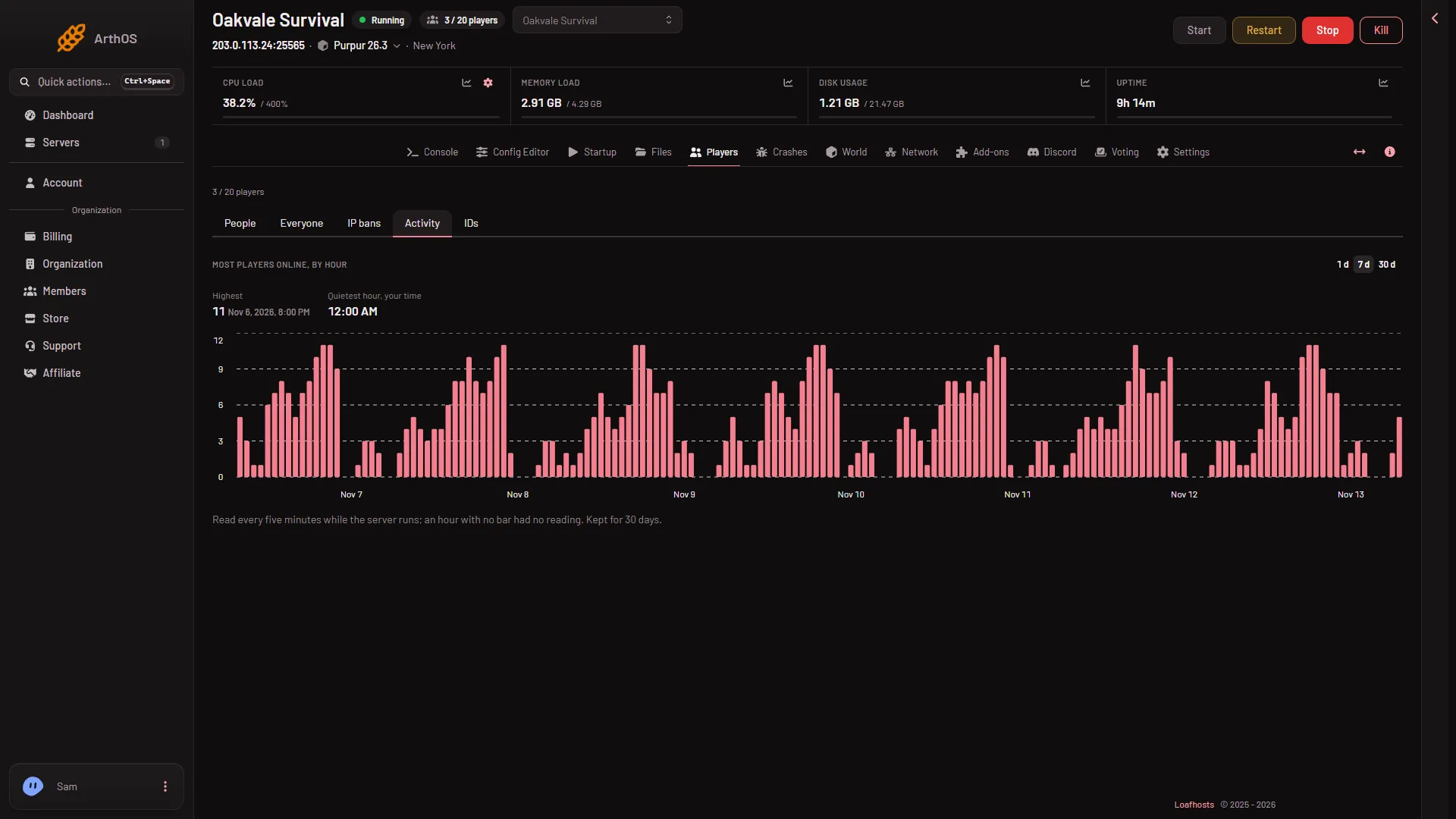
Open the Players tab and choose Activity. A chart shows the most players online in each hour. Use it to find when your server is busy and when it is quiet, for example to plan a restart.
The chart is on the Minecraft Java Players page. This is about the panel’s own record. To see who is on right now, see who is online. See Minecraft servers for the game.
Open the chart
- Open your server and choose Players.
- Choose the Activity tab (1).
- Read Most players online, by hour (2).
- Activity tab
- Most players online, by hour
Read it
- Each bar is one hour. Its height is the most players online in that hour.
- Highest shows the biggest number and the hour it happened in.
- Quietest hour, your time is the hour of the day with the lowest average peak, over the days shown. It appears once the panel has readings for at least half of the 24 hours.
- The numbers at the left show the scale.
Choose how far back
The buttons 1 d, 7 d and 30 d choose the period: 1, 7 or 30 days. Use 7 days to see a weekly pattern. Weekends are often busier. Use 1 day to check today.
Where the numbers come from
The panel counts the players every five minutes while the server runs. An hour with no bar had either no reading (the server was stopped, or asleep from standby) or a reading of 0 players. The chart does not tell them apart. A short visit between two counts can be missed. The panel keeps 30 days.
A new server shows “No readings yet. The panel counts players every five minutes while the server runs.” Give it a few hours. Quietest hour, your time needs at least half a day of readings.
Use it
- Restarts and backups. Pick the quietest hour and set a schedule there. The chart shows hours in your browser’s time zone. A schedule runs in the server’s time zone, set on Settings, Timezone. Convert before you set the time. See restart on a schedule.
- Updates. Update in the quiet hour.
- Is the server growing? Compare the 30 d and 7 d views.
The chart shows how many players were on, not who. To see names, use the People tab.
If it does not work
- No bars at all. The server has not been running, has just started, or nobody has been on. Wait for readings.
- Gaps and empty hours. The server was stopped or asleep, or nobody was on.
- The quiet hour looks wrong. It is in your browser’s time zone. The server may be set to another zone, so its own clock differs.
- The Players tab is missing. Your role needs to see players.