












If your server is stopped and nobody pressed Stop, it may be in standby. The panel stops a server that nobody has played on for a set time, so the machine’s memory goes to servers people use. By default the wait is 10 days. Standby is on for new servers unless the owner turned it off. Nothing is deleted. Press Start, or open the server’s wake link, and it comes back.
Standby is not a crash. A crash is a server that stopped without being asked. For that, see find out why your server crashed.
Start the server again
- Press Start on the server page.
- Or open the wake link. Anyone who has the link can start the server with it, and nothing else.
The server header shows Standby. If your role may change standby, a box This server is in standby also opens and says when it stopped. Choose a longer wait, Turn standby off, or Not now. Saving there never starts the server.
The Standby card
Open Settings. The Standby card is there.
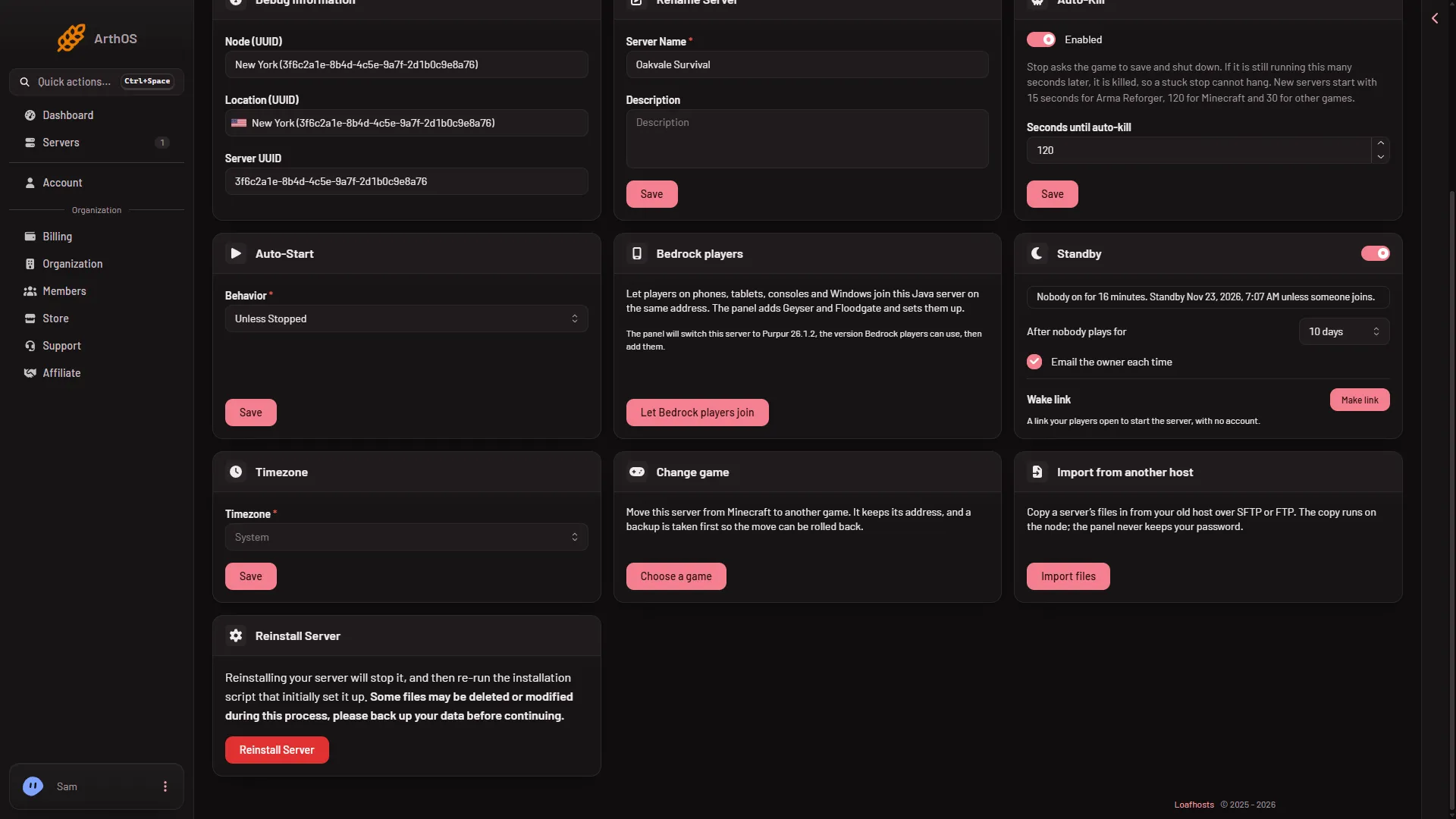
- Standby card
- Standby switch
- After nobody plays for
- Email the owner each time
- Wake link
The date and time in the picture are demo data.
- The switch (2), Stop the server when nobody plays on it. Turn it off and the server keeps running when nobody plays.
- After nobody plays for (3): how long the server waits with nobody on. Choose from 30 minutes up to 24 days.
- Email the owner each time (4): when ticked, the owner gets an email each time standby stops the server.
- Wake link (5): see below.
Changes save as you make them. You see “Standby settings saved.” If you pick a time shorter than the time nobody has been on, a box Go into standby now? asks you to confirm. The server then stops within a few minutes.
To change standby your role needs the standby permission and the permission to stop the server.
The wake link
Choose Make link. The card then shows Copy link and Options. Share the link with your players. Opening it starts the server. It can do nothing else: no stop, no settings, no files. It starts the server up to 12 times a day.
Options has two tick boxes: Show the join address on the wake page and Add a Start server button to Discord status messages. New link makes a fresh one and the old one stops working at once. Turn off removes the link. Making a link needs the standby link and start permissions.
How the panel decides nobody is playing
- It counts only what the game itself answers. If it cannot read the player count, it never stops the server.
- It checks the count a second way, and both must agree before it stops.
- It does not stop a server while a change, backup or wipe is running.
- A start nobody joins within 60 minutes goes back to standby. A start you press yourself gets the whole wait again.
The stop is the normal stop. The world is saved first.
While the server is in standby
A schedule that restarts the server waits instead of waking it. Any start wakes it: you, the API or the wake link. See restart on a schedule.
If it does not work
- The server stopped but you did not use standby. Check the Standby card. If it says the server went into standby, that was it. If not, read the Console: after a memory kill it shows “The server stopped unexpectedly.” with “The server used all its memory and the machine stopped it”. Then open the Crashes tab.
- The card says the server did not stop within 10 minutes. It was left running and standby tries again later.
- The card says “Waiting”. The panel cannot read the player count, or a change is running. It will not stop the server until that clears.
- No Standby card. Your role cannot see it.
- Your wake link does nothing. It may have been turned off or replaced. Make a new one.
More about the game: Minecraft servers.