
The World tab has two views, World map and Chunk editor. The World map draws your world from above. This guide is about the Chunk editor, which shows a map of regions and lets you open any chunk in 3D. You can break and place blocks, follow players, and delete chunks so the game builds them again.
A chunk is a column of 16 by 16 blocks. A region is 32 by 32 chunks (512 by 512 blocks).
With the server stopped, the panel stages your block changes and writes them to the world files when you save them. With the server running, each change goes through the game. Take a backup before you edit anything.
The tab is on every Minecraft Java server. A new server has no world until it has started once: the page says “This server has no world yet. Start it once and the game creates one.”
Look around
- Open the World tab and choose Chunk editor. The World map / Chunk editor switch (1) at the top right moves between the two views, and the panel remembers your choice. The line under the title tells you the state: “Running: changes go through the game”, “Stopped: changes are saved to the world files”, or “Starting or stopping: changes wait until it has finished”.
- Choose Overworld, Nether or The End (2) above the map. The page shows “REGIONS” with how many the dimension has.
- The map (3) is of one region, named by its x and z. It has two views, Surface and Activity. Activity is brighter where players spent more time, up to ten hours or more, and dark chunks were generated but never lingered in.
- Point at the map to find a place, and click a chunk to open it in 3D. Chunks nobody has visited say “nobody has been here yet”.
- In the 3D view, the arrow keys turn the view and plus and minus zoom. View from has N, E, S, W, Top and Reset. A slider cuts the chunk at a height so you can see inside. Chunks in view (5) shows 1x1 up to 10x10 chunks at once.
- Use X, Z and Go to to jump to block coordinates. Players who are online appear on the map, and Follow keeps the view on one of them.
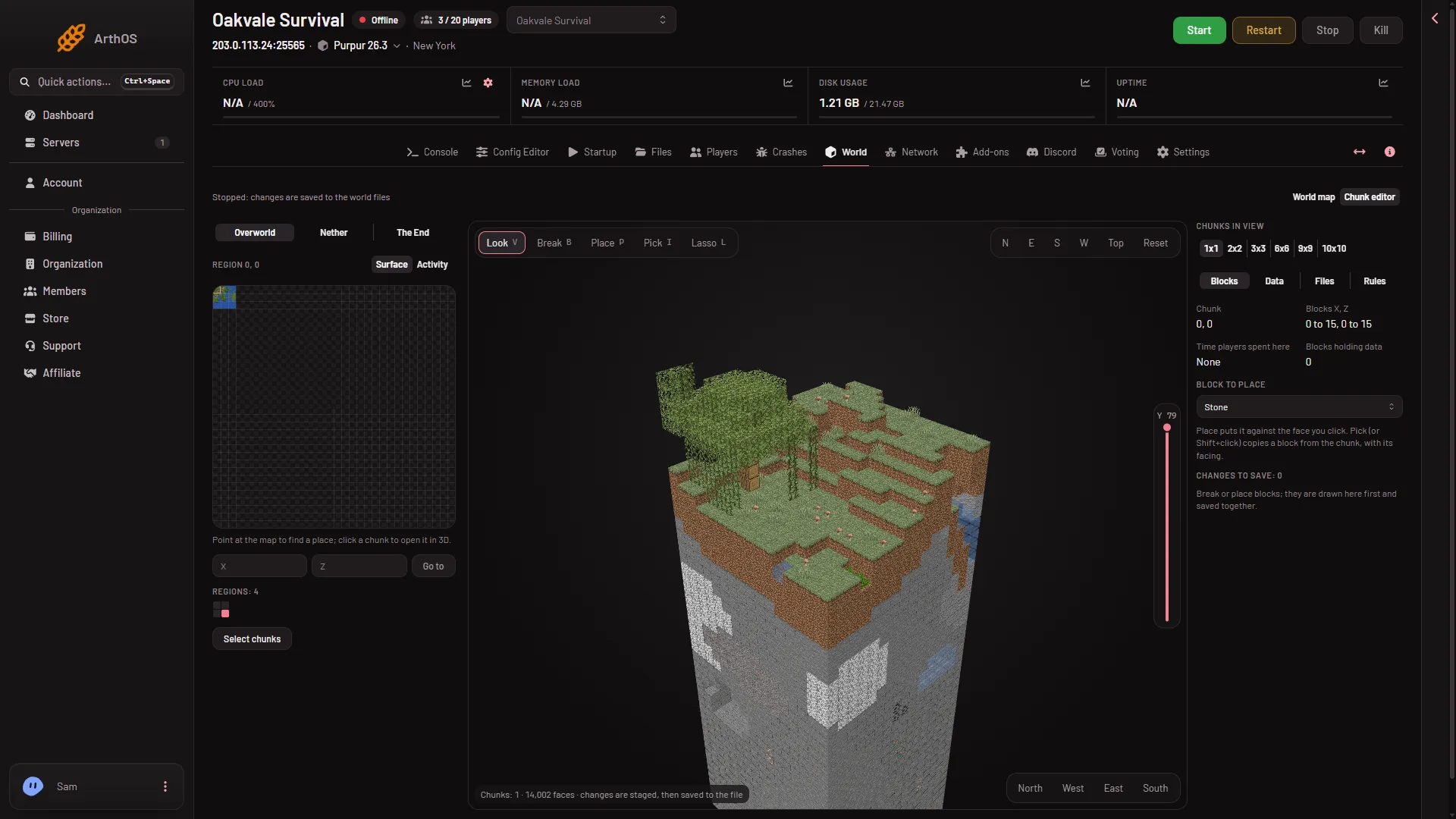
- World map / Chunk editor
- Overworld, Nether, The End
- Region map
- Look, Break, Place, Pick, Lasso
- Chunks in view
Change blocks
The Look (V), Break (B), Place (P), Pick (I) and Lasso (L) tools sit above the 3D view (4), and the letters are their keys. Break and Place are off if your role cannot edit the world. The page then says “You can look but not change this world.”
- Break: click a block to remove it.
- Place: choose a block under “Block to place”, then click the face of a block. Pick (or Shift+click) copies a block from the chunk with its facing.
- Lasso: drag around blocks to select them. Hold
Shiftto add blocks to the selection andAltto remove them. Then Break them, or fill them. The fill block comes from Block to place, and the button reads Fill with plus that block’s name.
For example, to fix a hole in the ground: choose the block in Block to place, choose Lasso, drag around the hole, choose Fill with that block, then, on a stopped server, choose Save with the count. A running server needs no save: each change has already gone to the game.
While the server is running
Each change goes straight to the running game and counts only when the game confirms it. The view shows the world as last saved plus your changes. The game must have the chunk loaded. If nobody is near it, the panel says so: go there in game, or stop the server.
The Live switch under the region map, on a running server, shows players as they move, with blocks as last saved. It asks for no confirmation and does not make the game save. Refresh now makes the game write the world once. It works once every 30 seconds, and the button then counts “Refresh again in” some seconds.
While the server is stopped
The panel stages your changes and draws them in the view. Check them in Changes to save, then choose Save with the count. Use Undo or Discard to drop them. The panel keeps the previous file beside the original before it writes, and tells you its name once, in the notice after saving: write it down. To go back, stop the server and restore it in Files. A backup in Settings, Backups is the safe way back.
Other things the tab does
- Select chunks, then Delete: the game builds them again, fresh, the next time a player is near. Everything built in them is gone, and it needs the server stopped. The panel keeps the previous file.
- Select by activity picks chunks players barely visited. Find and replace counts one block in the chunks you chose and replaces it, with the server stopped.
- Data shows the chunk exactly as the game stored it, and Files the world’s
.datfiles, such aslevel.dat. Both are editable only while the server is stopped. - Rules lists every game rule by name and id, each with a switch or a value. A change goes through the game and counts when the game confirms it. Open a chunk first, then choose Rules. Changing a rule needs the game rules permission; without it you can only look. For example, Pvp (
pvp) is on a new world. See turn PvP on or off.
By hand
Operators can change blocks in game with /setblock and /fill, which the running game applies at once. Region files sit under world/dimensions/minecraft/<dimension>/region on 26.x, and you can open them in Files if you need to restore a copy.
If it does not work
- Break and Place are greyed out. You may lack permission to edit the world, or the server is starting or stopping. The state line under the title says which.
- “The game has not loaded that chunk”. Nobody is near it. Go there in game, or stop the server and edit the file instead.
- “This chunk could not be read”. The file for that chunk is damaged. Restore a backup of the world.
- Rules says no rules are saved. Start the server once so the world saves them.
- The map is empty. The world has not been generated. Start the server once.
More on the game: Minecraft servers.
Sources: minecraft.wiki: Setblock, minecraft.wiki: Fill