















RCON is a remote console for your Rust server. To connect a tool you need three things: your server’s address, its RCON port over TCP, and the RCON password. On a Loafhosts server web RCON is already on, so there is nothing to enable. When you host Rust yourself, start the server with +rcon.port, +rcon.password and +rcon.web 1 (see By hand).
In the ArthOS panel
- Find the address and port. They are in the server’s header under its name, and in the Address row on the right of the page, written as
address:port. On a Loafhosts server the panel sets the RCON port to the game port number, over TCP. You cannot change it. The Network tab lists two ports for a Rust server: the game port and the next one, which the query and Rust+ use.
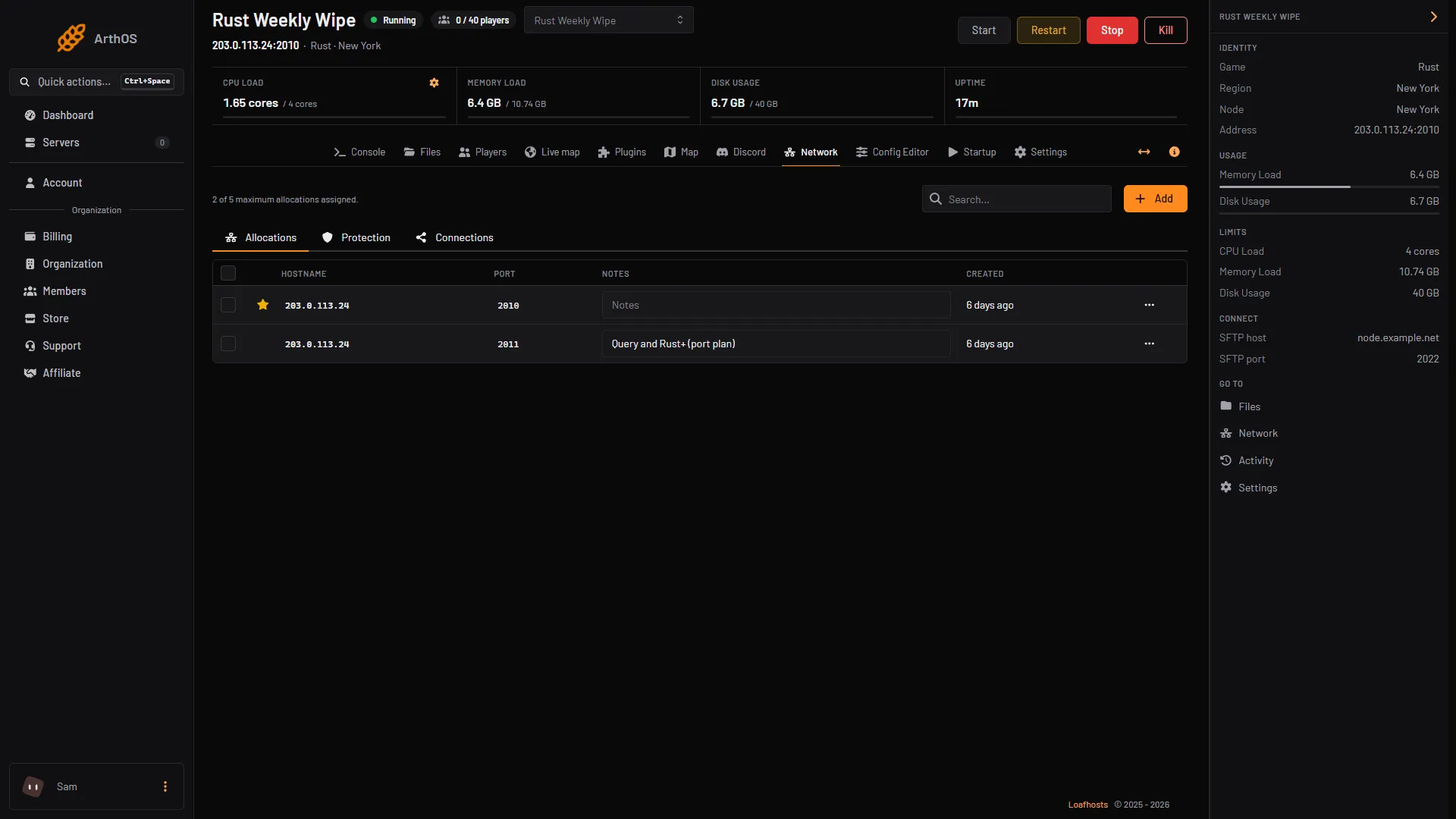
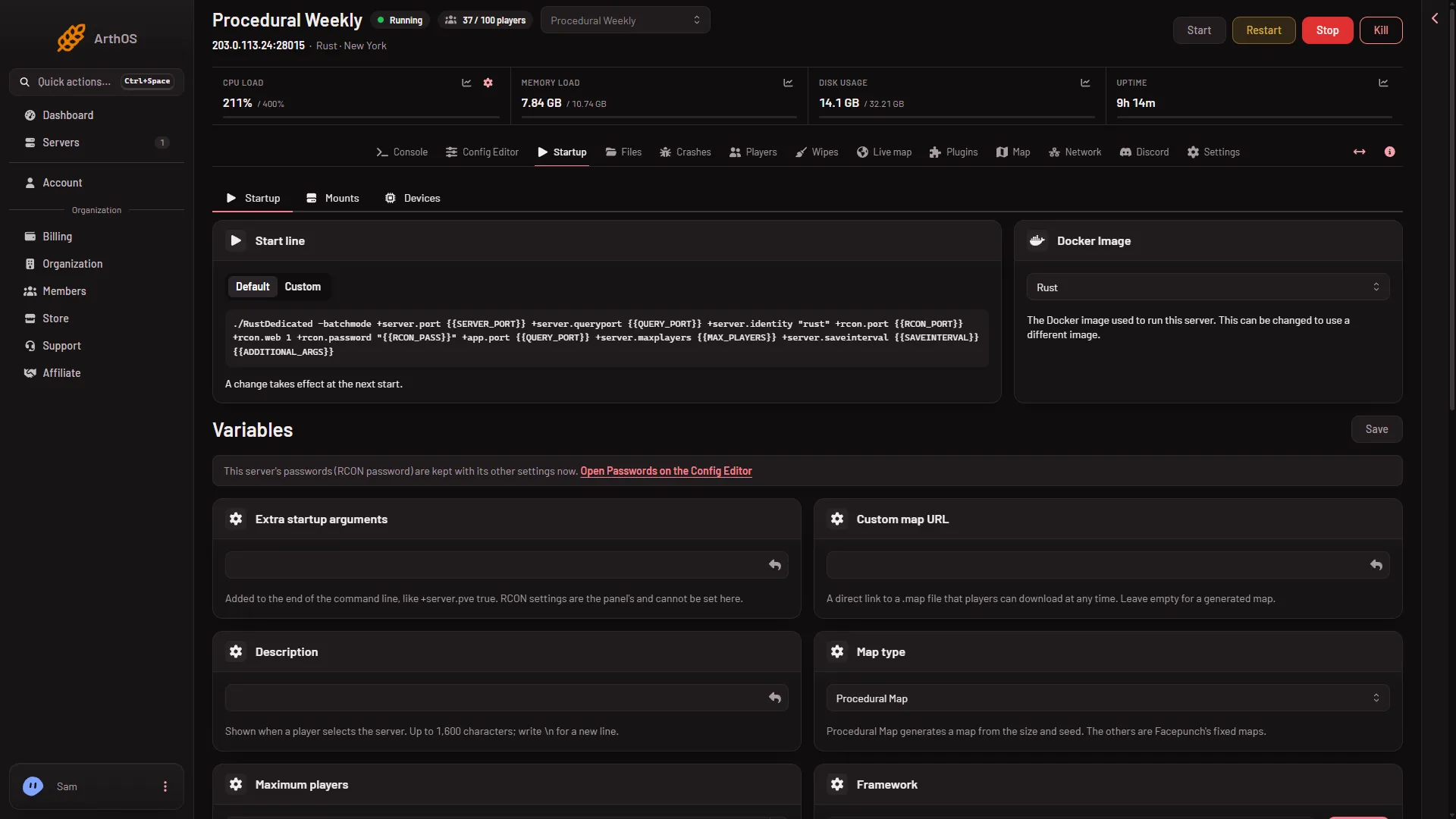
- The Startup tab does not list the password. It shows the note “This server’s passwords (RCON password) are kept with its other settings now.” (1) and a link, Open Passwords on the Config Editor (2). Query and Rust+ port on Startup is read only; do not use it for RCON.
- Passwords moved
- Open Passwords on the Config Editor
Open the Config Editor tab and choose the Passwords button (1). The RCON password row (2) is a hidden box. Use the eye button to show it, or Copy (3) to copy it.
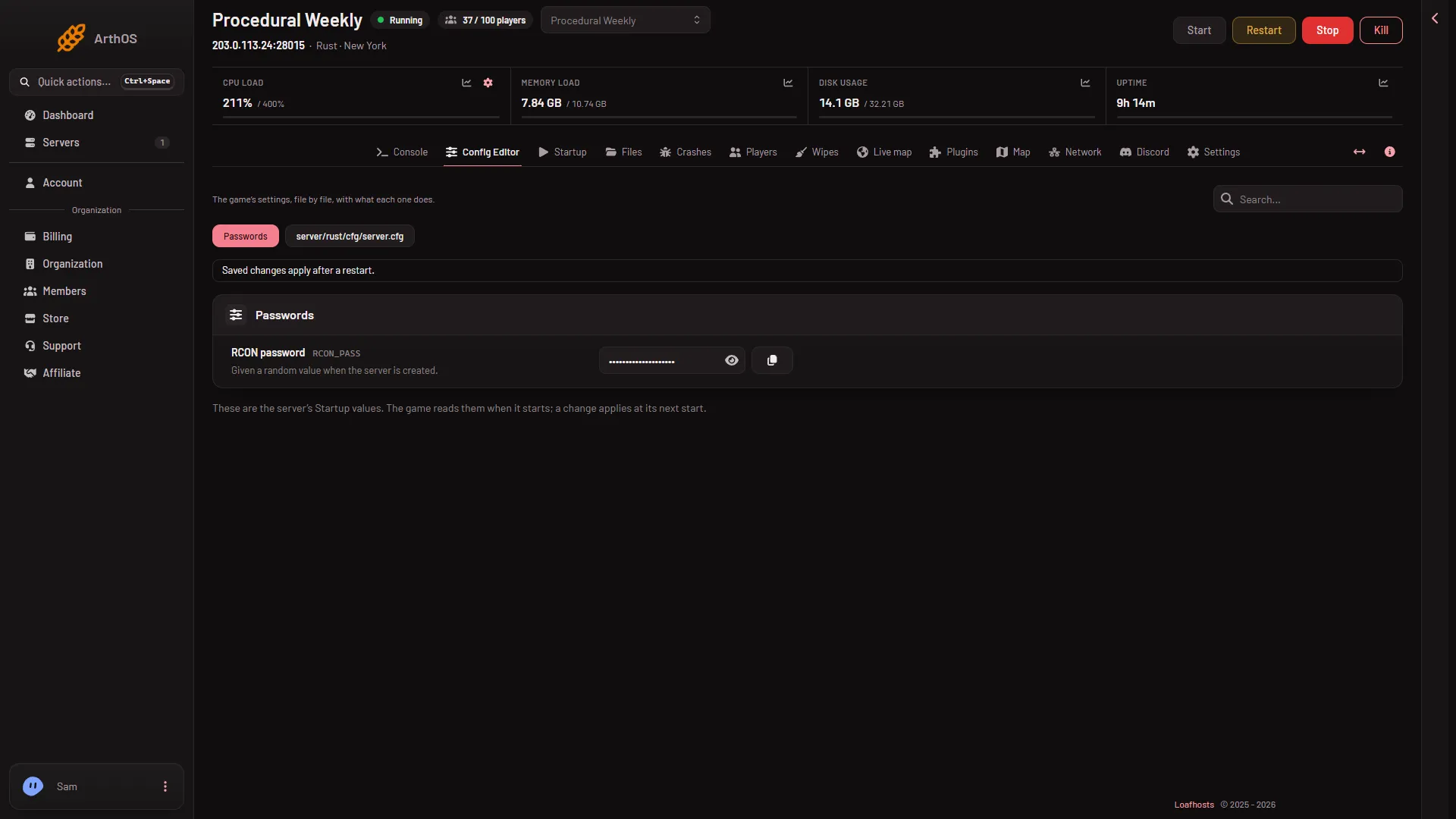
- Passwords button
- RCON password
- Copy
- Open your RCON tool and enter the address, the port and the password. Tools that ask for a web socket address use this form, with your own values:
ws://address:port/password- Connect, then try
status. It lists the players on the server with their Steam IDs, names, ping, time played and IP addresses.
The server must be running. A stopped server refuses the connection. If your tool cannot connect, check the address, the port and the password again.
Change the password
- Open the Config Editor tab, choose Passwords, type the new password in RCON password and choose Save in the bar at the bottom of the page. Use 12 to 64 characters: letters, digits,
.,_and-. - Restart the server. The game keeps using the old password until it restarts. Until the restart, the panel’s own Live map and Players tab cannot talk to the game.
The panel gives a random password when the server is created. The note above Extra startup arguments says “RCON settings are the panel’s and cannot be set here”, so do not add RCON options there.
What not to share
- The password. Anyone who has it can send admin commands to your server through RCON. Do not paste it in chat, in a screenshot or in a support request. The panel hides it for that reason. Give the password only to someone you would let run any command. Moderators do not need it.
- Tools you do not trust. A tool you give the address and password to can run commands as you.
- A password you used elsewhere. Make it unique.
If it leaks, change it and restart the server. To let a person run admin commands in the game without RCON, make them a moderator instead. See Add an owner or moderator on Rust.
By hand
Self-hosting, add these to the start line:
+rcon.port 28016 +rcon.password "your-password" +rcon.web 1Facepunch’s wiki gives 28016 as the example port, over TCP, and says the default is the same as server.port. It suggests rcon.web 1. Open that port for TCP in your firewall. On Linux the console is not interactive, so you need an RCON client to send commands.
If it does not work
- Connection refused. The server is stopped or still starting. Start it and wait for
Server startup completein the console. - It closes at once after you connect. The password is wrong. If you changed it under Passwords, restart the server first.
- It connects and then closes with nothing. The game allows five RCON connections from one address, and a closed connection keeps counting for about 30 seconds. Close other tools and wait.
- It does not connect at all. Check that your tool uses the game port number, over TCP, not the query port.
More about Rust hosting on the Rust page.
Sources: wiki.facepunch.com: Creating a server, github.com: Webrcon, wiki.facepunch.com: Useful commands