




When Offworld releases an update, the server does not change by itself. It is updated when it next starts, if Update on start is on. Restart first. If it still fails, the usual causes are a mod made for the old version, or a setting the update added to your config files.
1. Restart so the update downloads
- Open Startup. Check Update on start (1) is
1. It checks Steam for a game update every time the server starts. Players cannot join a server behind the current version, so leave it on. - Check Beta branch is empty, unless Offworld gave you a private branch.
- Restart the server and watch the Console until it has finished starting.
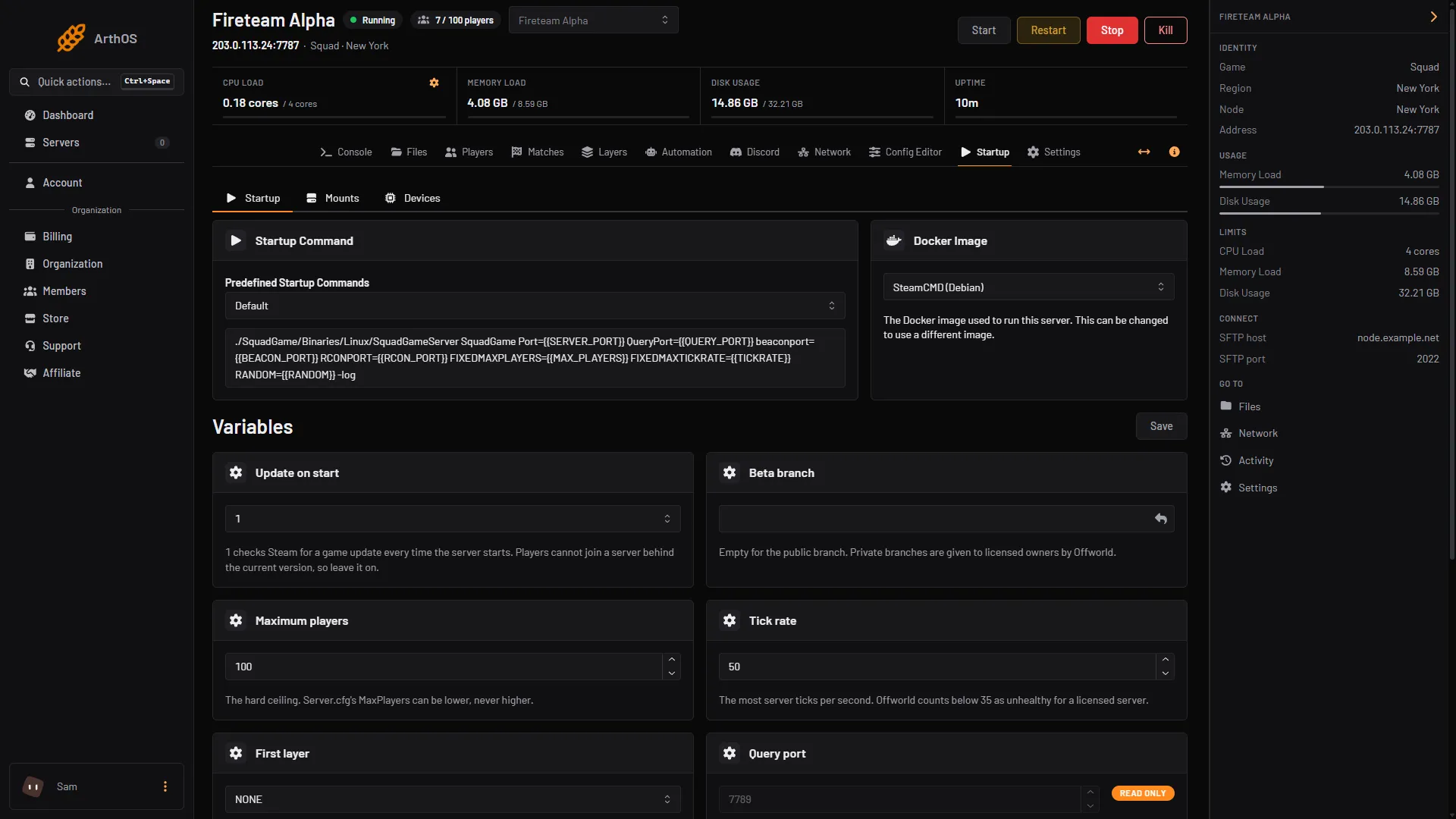
- Update on start
Some Offworld releases update both the game and the server at once. The 10.6.1 hotfix was one. A player on the new version cannot play on an old server.
2. Find out if a mod is the cause
A mod made for the old version may not work after an update.
To check, use the Mods page:
- Stop the server. Open Mods, take each mod off the list with its red trash button, and choose Apply. The mods are kept aside, not loaded, and show under On the server, not loaded.
- Start the server. If it starts, a mod is the cause.
- Bring the mods back one at a time with Put on the list and Apply and restart, until it fails.
Moving the numbered folders out of SquadGame/Plugins/Mods in Files does the same by hand.
4. Check the mod’s Workshop page for an update. Offworld’s advice for a mod that will not load is to remove it, delete its download, and download it again.
See install Squad mods to put an updated mod back.
3. New settings are not added to your files
Offworld does not overwrite your config files in an update. A new setting is not added to a file you already have. Offworld’s wiki says to add it by hand. The game uses its own default until you do.
- Read the update’s release notes on the Steam news page for Squad.
- If a new key is named there, add it in Files, in
SquadGame/ServerConfig. Use the file’s own style:Key=Value, one per line. - Config Editor lists only the settings the file already holds, plus a few the panel knows the defaults of, marked Game default.
4. Read the crash files
The game can save a crash report. Add this to SquadGame/Saved/Config/LinuxServer/Engine.ini:
[CrashReportClient]
bAgreeToCrashUpload=true
Make a folder SquadGame/Saved/Crashes. After the next crash, a crashinfo-SquadGame... folder appears there. The log is SquadGame/Saved/Logs/SquadGame.log. The setting lets the game send crash reports to Offworld. Leave it out if you do not want that. This is from Offworld’s wiki, Server Administration page, “Getting Crash Dumps”.
If it does not work
- It still will not start with every mod out. Open
SquadGame.logand read the last lines. Ask support, and give them the crash folder. - It starts, but nobody can find it. See Squad server not in the list.
- A layer will not load. Check the layer name for a typo, and that it is not in
ExcludedLayers.cfgorExcludedLevels.cfg.
More about the game: Squad servers.
Sources: store.steampowered.com: 393380, squad.fandom.com: Server Configuration, squad.fandom.com: Unable to load a Layer, squad.fandom.com: Unable to Find Server, squad.fandom.com: Uploading a mod to a dedicated server, squad.fandom.com: Server Administration