
Open Mods. A mod with a newer Workshop version has an Update chip. Choose Update on it, or Update all, then Apply and restart. Players update their mods in the DayZ Launcher. Hosting it yourself? See By hand below.
What the page checks
The panel asks the Workshop when each mod last changed and compares that with when it downloaded the mod. If the Workshop is newer, the row gets the Update chip and the line “The Workshop has a newer version. Players who already have it cannot join until the server has it too.” The page subtitle also counts them, for example 2 updates on the Workshop.
You choose which mods the panel updates. A mod you uploaded yourself, such as @mymod, shows Local folder and is never changed here. Replace its folder yourself.
A mod you put on the server yourself, or before the Mods page existed, may say “Which version the server has is not known: it was not downloaded by the panel.” Choose Download again on it to get a copy the panel knows.
In the ArthOS panel
- Open Mods and look for the Update chip (1). If there are several, Update all chooses them all.
- Choose Update on a mod (the button then says Updates on apply), or Update all. The bar at the bottom lists them, for example
2 updates. - Choose Apply and restart (2), then confirm. On a stopped server the button reads Apply and the server stays stopped. Applying needs permission to change the startup settings and to restart the server. The server stops, downloads the new versions, and starts again.
- Progress shows at the top of the page. The console prints lines that start with
[mods], such asDownloading 2 mod(s) from the WorkshopandDownloaded 1559212036.
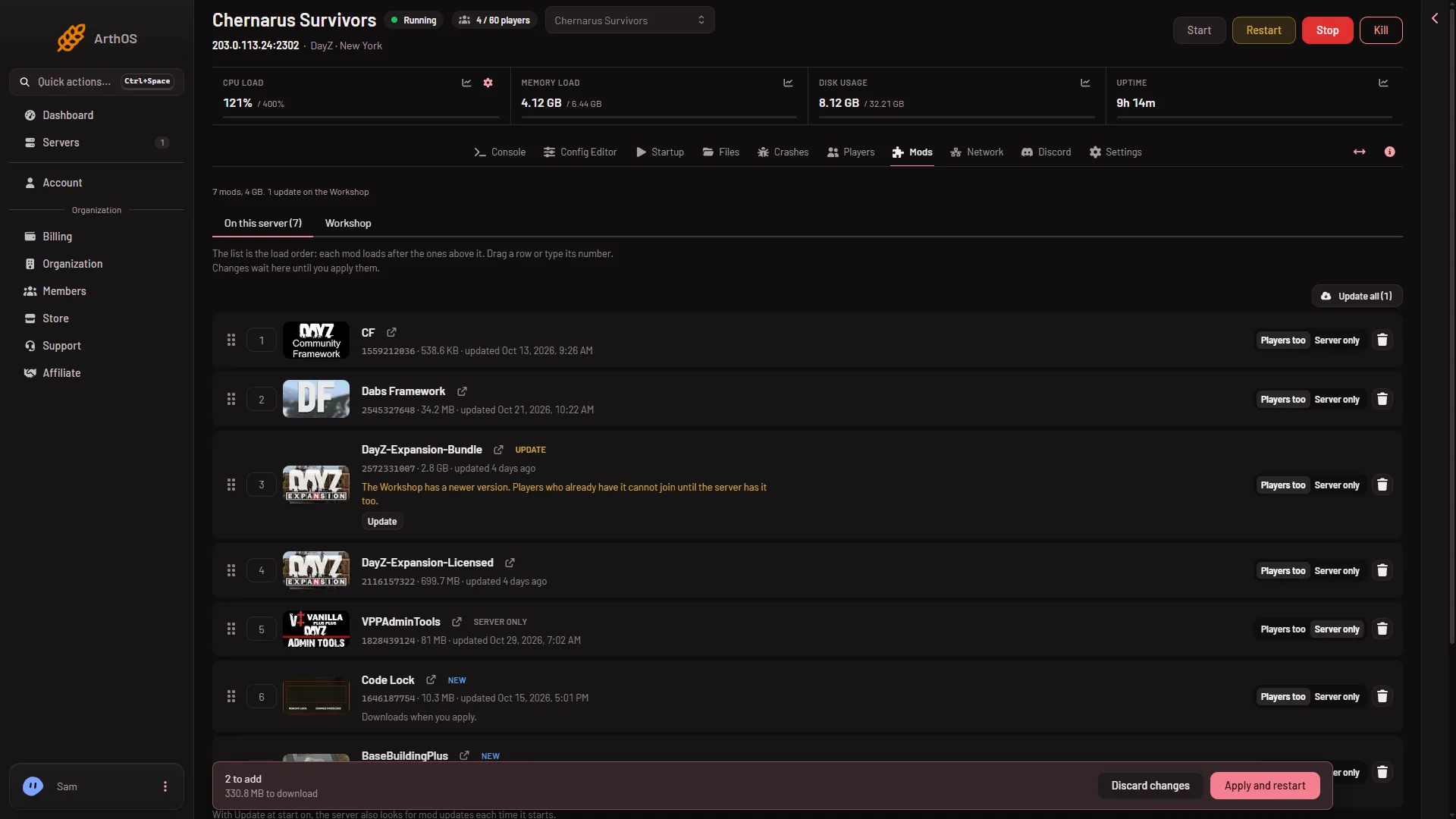
- Update chip
- Apply and restart
The panel does not update a mod when you do nothing. The server’s own check at start is a separate step: while Automatic Updates on Startup is on, the server also looks for mod updates each time it starts, so a restart can update mods without you choosing. The Mods page calls it “Update at start” and it covers Additional Mods and [Advanced] Server-Side Only Mods. The Mods page does the job on your word, so you see what changes and when.
You can also restart on a timer. See restart schedule.
Players
When a mod changes on the Workshop, players can get the new version before your server has it. Players who already have the newer version cannot join until the server has it too. So a player who updated first is refused until you apply the update on the server too.
After the server has the new version, players who are behind update their mods in the DayZ Launcher, then join again. See mismatched mods kick.
Make Mod Files Lowercase
The server runs on Linux, which treats Mod.PBO and mod.pbo as two different files. The panel does not change the case of the files it downloads. A mod you copied from a Windows computer may need it.
[Repair] Make Mod Files Lowercase makes every folder and file name of each mod on the Mods page’s list lowercase at the next start. It skips a name if a file with the lowercase name already exists.
- Open Startup.
- Turn [Repair] Make Mod Files Lowercase (1 in the picture below) on and choose Save.
- Restart the server.
- Turn it off again. One start is enough.
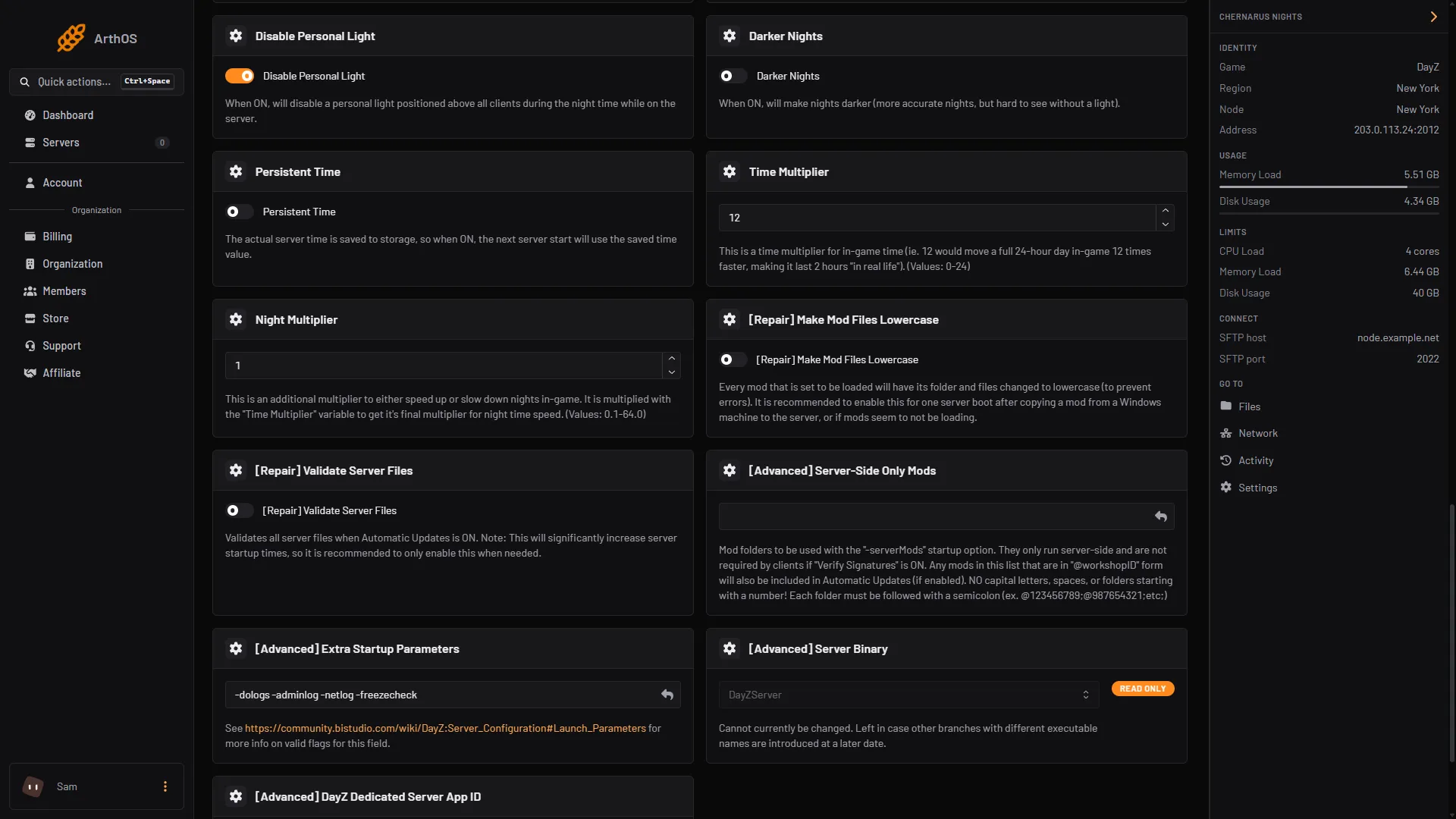
- Make Mod Files Lowercase
Use it after you copy a mod from a Windows computer. It is not a general repair for a failed update.
By hand
If you host DayZ yourself, update a mod by downloading it again with SteamCMD. The Steam account you log in with must own DayZ:
steamcmd +login your_login +workshop_download_item 221100 1559212036 +quitOn Linux, make the file and folder names inside the mod lowercase after the download, then copy its .bikey files into keys again and restart.
If it does not work
- The top of the page says Mod changes not applied. The reason follows it. A mod that failed to update keeps its old copy, and the old copy keeps loading. Fix the cause and apply again.
- The page says the host’s Steam account could not sign in. Nothing on the server changed. The page may say support has been told. Do not wait for a message: wait a few minutes and apply again, and if it keeps failing, open a ticket with the exact message.
- Nothing updates. The page only updates what you chose. If a row has no Update chip, the Workshop’s last change is not newer than the panel’s record. Reopen the page in a few minutes, because the Workshop answers are kept for 10 minutes. If the page says “The Workshop did not answer, so this shows what was last known”, that is the same cause.
- A mod stays old. Choose Update or Download again on its row, then apply. If its folder
@<ID>was deleted in Files, the row shows Not downloaded and applying downloads it again. In Files a delete goes to the Trash first, where Restore puts it back for 3 days. - The update takes a long time. Large mods are slow. A mod that times out is tried once more, then the page says
the download timed out. Apply again to retry. - The page says the downloads need more space than the server has. Take mods you do not use off the list, apply, then choose Delete files beside them under On the server, not loaded. Taking a mod off the list does not free its space. Delete files asks first, and the mod downloads again if you add it later.
- A mod fails to load after an update. Check the mod’s Workshop page for news and read the console for errors. If you took a backup first, restore it. The switch [Repair] Make Mod Files Lowercase is only for a mod you copied from a Windows computer.