












Guides / Project Zomboid
Project Zomboid server guides.
One task per guide: how to do it in the ArthOS panel, and by hand where there is a way.
Basics
14 guides-
 Basics
Change your Project Zomboid server name
Players see the Config Editor's Server name. The Startup Server Name is the save name: changing it starts a new world. Restart to show a new name. - Basics
Connect a Project Zomboid server to Discord
Show your Project Zomboid server in a Discord channel, post its events there, and bridge in-game chat to Discord with the game's own bot setting. - Basics
Connect to a Project Zomboid server
Join a Project Zomboid server from the game: Join, add the address and game port, make your account, enter the join password, and let mods download. - Basics
Project Zomboid backups and where the world is saved
The world is saved in .cache/Saves/Multiplayer, in a folder named after your server. Make and restore backups in Settings, Backups; the game keeps its own too. - Basics
Project Zomboid max players: change the player limit
Set Maximum players in the Config Editor, then restart. The game default is 32 and admins are not counted. Above 32 the map can stream poorly. - Basics
Project Zomboid server requirements: RAM, disk, CPU
An idle Build 42.21 server used about 2.4 GB of memory and 7.7 GB of disk. Players, mods and zombies add more. Lists three server sizes. - Basics
Reset a Project Zomboid server (wipe the world)
Back up, stop the server, delete the world folder in Files for a fresh start, or change the Server Name to keep the old world. - Basics
Restart a Project Zomboid server
Restart a Project Zomboid server with the Restart button at the top of the server page. It saves the world first. Warn players, or restart on a schedule. - Basics
Set a password on a Project Zomboid server
Type a Join password in the Config Editor's Joining group, save and restart. Leave it empty and anyone can join. It is not the admin password. - Basics
Set up a Project Zomboid server
Start your Project Zomboid server, wait for it to finish starting, set the Startup page and Config Editor, add mods, then join with the server's address. - Basics
Update a Project Zomboid server
Restart your Project Zomboid server and it checks Steam for a game update when Steam Auto Update is on. Mods update separately. Back up first. - Basics
Why your Project Zomboid server stopped: standby
A Project Zomboid server nobody plays on for 10 days goes into standby. Nothing is deleted. Press Start or use the wake link, or change the wait. - Basics
Project Zomboid server ports
A Project Zomboid server uses three ports: the game port, the direct connection port next to it, and an RCON port. Find them on the Network page. - Basics
Run a Project Zomboid Build 41 server
Set Steam Beta Branch to legacy41 on the Startup page, then reinstall the server from Settings to run Build 41.78 instead of Build 42.
Players and admin
18 guides- Players and admin
Ban and kick players on a Project Zomboid server
Kick or ban a Project Zomboid player from the Players page, ban a SteamID, and unban from the Bans list. By hand: kickuser, banuser, banid, unbanuser. - Players and admin
Give a player an item on a Project Zomboid server
Open the Players page, pick Give item, search the list and send it to an online player. By hand: the additem command and where to find item ids. -
How to teleport players in Project Zomboid (server)
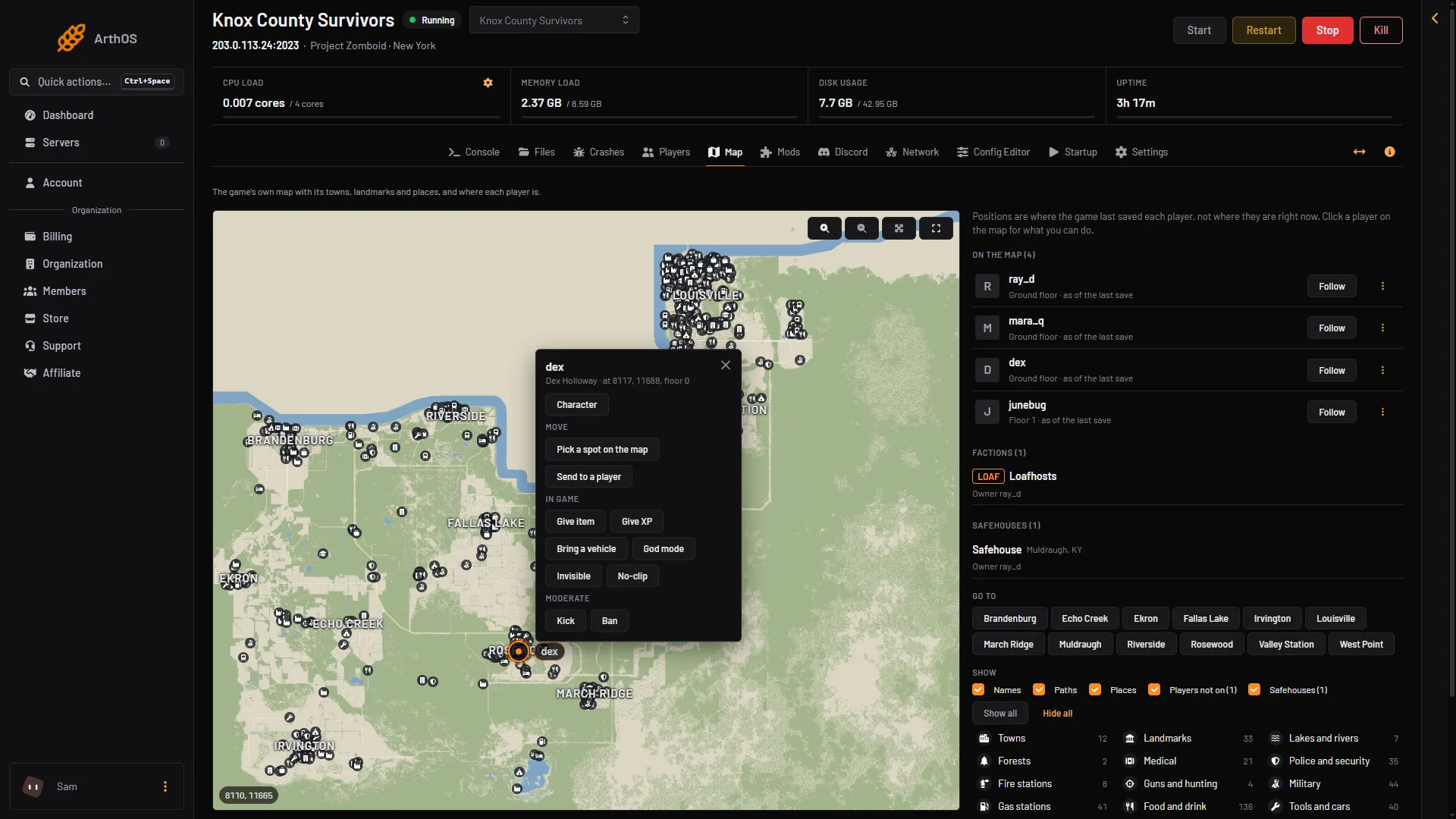
Send a player to another player or to map coordinates from the Players page, or click a spot on the Map. By hand: teleportplayer and teleportto. - Players and admin
Make yourself admin on a Project Zomboid server
Join your Project Zomboid server with the admin account from Startup and Passwords. Then make others admin from the Players page or with setaccesslevel. - Players and admin
Project Zomboid admin commands
The Project Zomboid admin commands that matter, with what each does and an example. Type them in chat with a slash, or in the panel Console without one. - Players and admin
Set up a Project Zomboid whitelist
Make a Project Zomboid server closed: turn off open accounts in the Config Editor, then add players or allow their SteamIDs on the Players page. - Players and admin
Set up safehouses on a Project Zomboid server
Turn on player safehouses in the Config Editor, decide who can enter, loot and burn them, and find every claimed safehouse on the server Map. -
Use the Project Zomboid server map
Open the Map page to see towns, landmarks, safehouses and where each player was at their last save, then send a player to a spot with one click. - Players and admin
Check a player's inventory on a Project Zomboid server
Open the Players page and choose Character to see what a player carries, wears and holds, plus skills, needs and wounds, even while the server is stopped. - Players and admin
Give a player XP on a Project Zomboid server
Use Give XP on the Players page: pick a skill, set the XP and send it to an online player. By hand: addxp with the skill ids the game uses. - Players and admin
How to make a faction in Project Zomboid
Players make a faction in game from the user panel and can add a four letter tag. Turn factions on or off in the Config Editor; they are on by default. - Players and admin
Project Zomboid access levels and setaccesslevel
The levels are user, priority, observer, gm, moderator and admin. Set one with the setaccesslevel command or the Players page. Staff levels cannot be banned. - Players and admin
Project Zomboid RCON and server console
Send commands to your Project Zomboid server from the panel Console. RCON on a Loafhosts server belongs to the panel. By hand: RCONPort and RCONPassword. - Players and admin
Project Zomboid spawn vehicle command and panel button
Use addvehicle with a script like Base.PickUpTruck, or Bring a vehicle on the Players page. The player must be online. Script names are case-sensitive. - Players and admin
Read the chat logs on a Project Zomboid server
See every message players wrote on your Project Zomboid server, private ones too, in the Players page Chat section or in the _chat.txt log files. - Players and admin
Reset a Project Zomboid player's password
A player forgot their Project Zomboid password? Set a new one with setpassword in the Console, or remove their account so they make a new one when they join. - Players and admin
Send a message to all players on a Project Zomboid server
Message everyone on your Project Zomboid server from the Players page or the console, set the welcome message, and send scheduled messages. - Players and admin
Turn on god mode, invisible and no-clip in Project Zomboid
Use God mode, Invisible and No-clip on the Players page, or type godmodplayer, invisibleplayer and noclip as an admin. Each one turns on and off.
Mods and maps
7 guides- Mods and maps
Add a custom map mod to a Project Zomboid server
Add the map mod on the Mods page and apply. The panel reads the maps inside it, writes the Map line and keeps Muldraugh, KY last. - Mods and maps
Add Workshop mods and maps to a Project Zomboid server
Open the Mods page, add a Workshop item from the Workshop tab or by link or ID, then Apply and restart. By hand: three lines in the server ini. - Mods and maps
Project Zomboid mod load order: set it and fix it
The Mods list is your load order. Drag a mod or type a number, sort by what each needs, and Apply: the panel moves any mod that loads before what it needs. - Mods and maps
Project Zomboid Workshop ID and Mod ID: where each goes
The Workshop ID is the number at the end of the Steam Workshop link and goes in WorkshopItems. The Mod ID is the id line in mod.info and goes in Mods. - Mods and maps
Update mods on a Project Zomboid server
When a Workshop mod updates, players with the new version cannot join until your server has it. Update it on the Mods page, then restart. - Mods and maps
Add a Workshop collection to a Project Zomboid server
Paste a Workshop collection link into Add by link or ID, choose Look up, read the plan, then Add and Apply. Items with no Build 42 version are flagged. - Mods and maps
Do Build 41 mods work on a Build 42 server?
No. Build 41 mods do not load on Build 42. Look for a Build 42 version of each mod, and read the note the Mods page shows for items it cannot load.
Server and sandbox settings
20 guides- Server and sandbox settings
Change loot amounts and loot respawn in Project Zomboid
Set how much of each item type spawns and make looted containers refill in Project Zomboid Build 42, using the Config Editor. Takes effect after a restart. - Server and sandbox settings
Change zombie settings on a Project Zomboid server
Open the sandbox file in the Config Editor and change the Zombie lore group: speed, strength, toughness, memory, sight and hearing. Restart to apply. - Server and sandbox settings
Project Zomboid Config Editor: change server settings
Open the Config Editor to change your Project Zomboid server ini and sandbox settings, search them and Save. Changes apply after a restart. Spawn files: Files. - Server and sandbox settings
Project Zomboid sandbox settings and file location
Sandbox settings are in the server's _SandboxVars.lua file. Edit them in the Config Editor, restart to apply. Covers zombies, loot, time and more. - Server and sandbox settings
Project Zomboid server ini settings explained
What the main keys in a Project Zomboid server ini do, with their Config Editor label and default, where the file is, and how to change options live. - Server and sandbox settings
Project Zomboid sprinters: turn them on or off
Set Speed to Sprinters so every zombie runs, or Random with a Sprinter percentage (default 0). Both are in the Zombie lore group. Restart to apply. - Server and sandbox settings
Project Zomboid start date and day length
Default day length is 1 hour 30 minutes. The game calendar counts from July 9, 1993 and the start month is July. Change both in the Config Editor. - Server and sandbox settings
Project Zomboid water and electricity shut off settings
Set Water shut and Elec shut in the sandbox file, from Instant to Disabled. Defaults are 0 to 30 days for water and 14 to 30 days for power. Restart to apply. - Server and sandbox settings
Project Zomboid XP multiplier: how to change it
Raise Global in the Multiplier config group of the sandbox file. 1.00 is normal and 2.00 doubles XP. Also covers per skill rates and Give XP. - Server and sandbox settings
Project Zomboid zombie population and multiplier
Set Zombies from Insane to None; the default Normal is a 0.65 population multiplier. Restart to apply. Also covers respawn and migration. - Server and sandbox settings
Turn PVP on or off on a Project Zomboid server
Choose whether players can hurt each other, let them opt in with the skull toggle, tune PVP damage, and announce deaths, all from the Config Editor. - Server and sandbox settings
Change the zombie infection settings in Project Zomboid
Set how the Knox virus spreads (Transmission), how fast it kills (Mortality) and how fast the dead rise (Reanimate) in the sandbox file. Restart to apply. - Server and sandbox settings
Does Project Zomboid autosave? How to set the interval
Yes. Save the world every (minutes) in the Config Editor sets it; new servers start at 10. At 0 the game saves an area only when players leave it. - Server and sandbox settings
Pause a Project Zomboid server when nobody is online
Switch on Pause time when nobody is on (PauseEmpty) to stop the world clock while empty. Standby stops the whole server instead. Needs a restart. - Server and sandbox settings
Project Zomboid anti-cheat settings
Project Zomboid anti-cheat settings explained: game file checks, Steam VAC, ping limit and the ten AntiCheat keys with ban, kick, log and disable modes. - Server and sandbox settings
Project Zomboid chat and voice chat server settings
Turn Voice chat and Global chat on or off in the server ini; both are on in a new file. Also covers voice distance, chat streams and radio. Restart to apply. - Server and sandbox settings
Project Zomboid helicopter: when it comes and how to stop
Helicopter is Once by default, first visit on day 6 to 9 after the start. Set it to Never in the sandbox file to turn it off, or type chopper to call one. -
Project Zomboid respawn after death: server settings
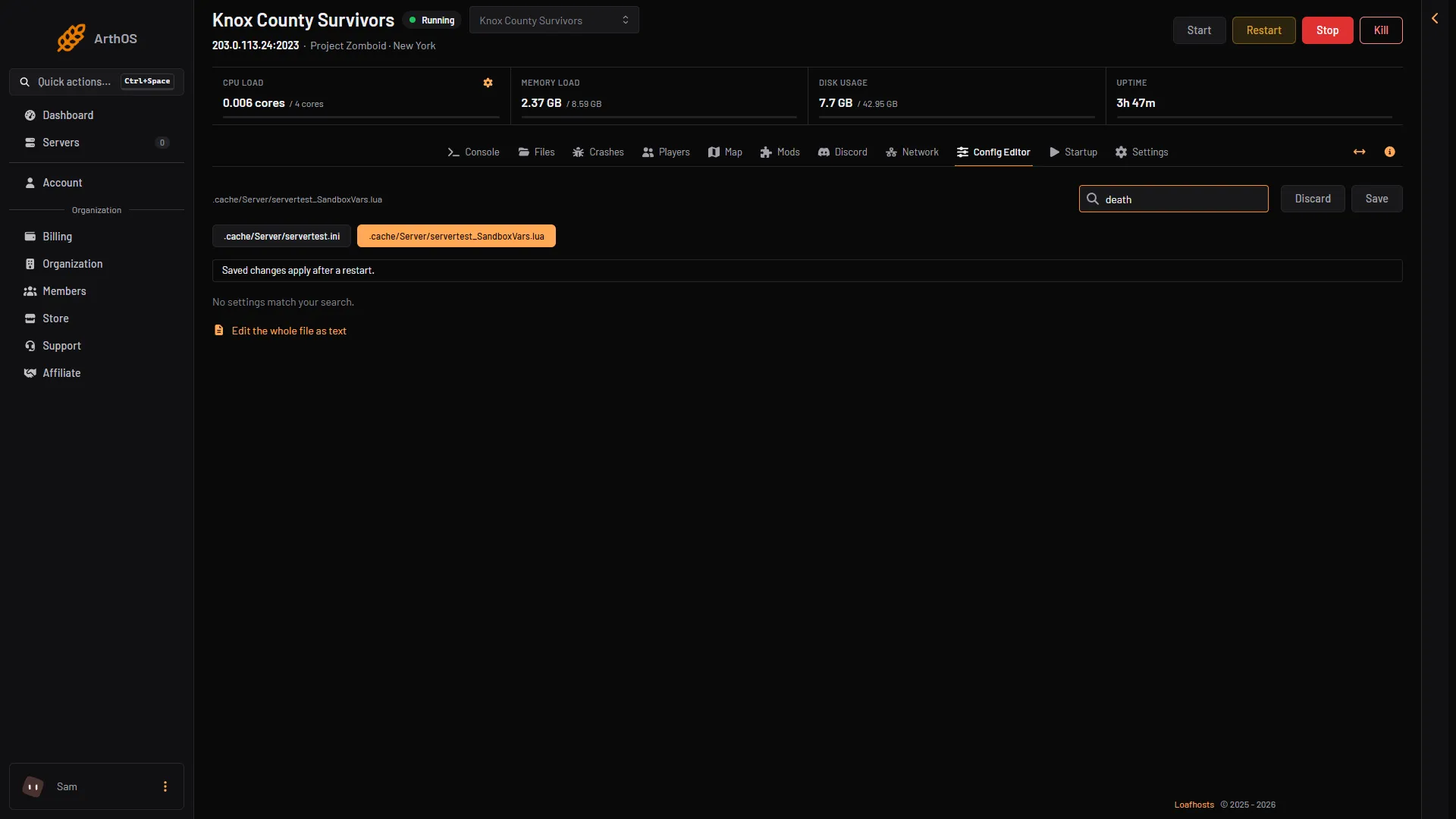
Turn on Respawn where you died or Respawn in your safehouse in the Config Editor, then restart. Both are off by default. Also covers death messages. - Server and sandbox settings
Project Zomboid vehicle settings
Turn cars on or off and set how many spawn, how much fuel they hold, how often they are locked and how badly they crash, in the Config Editor. - Server and sandbox settings
Set starting items and a spawn point in Project Zomboid
Give every new player the same items and send them to one place. Set Starting items and Fixed spawn point in the Config Editor, then restart.
Fixes
10 guides- Fixes
Fix Project Zomboid server lag and desync
What makes a Project Zomboid server lag or desync, from player count and memory to mods and zombie settings, and where to look before you change anything. - Fixes
Project Zomboid cannot connect to server
Fix a Project Zomboid join failure: check the address and port, wait for the server to start, then the password, whitelist, player limit, ping and mods. - Fixes
Project Zomboid server crashed: find out why
Open the Crashes page to see how each of the last 15 starts ended, what the panel found, and the fix for each finding. Healthy starts log many ERROR lines. - Fixes
Project Zomboid server logs: where they are
Project Zomboid server logs live in the .cache/Logs folder: the server log, joins, admin actions, chat and commands. Older starts move to logs_ folders. - Fixes
Project Zomboid server not showing in the list
A new Project Zomboid server stays out of the in-game list until List in the in-game browser is on. Turn it on, restart, and join by address meanwhile. - Fixes
Project Zomboid server out of memory: how to fix it
Out of Java memory or stopped for memory: give the server more memory, use fewer heavy mods, lower zombies. The panel caps the Java heap at memory less 2.15 GB. - Fixes
Project Zomboid version mismatch with the server
A player on one Project Zomboid build cannot join a server on another. Find both builds, then update the server or the player's game so they match. - Fixes
Project Zomboid workshop item version differs from server
Players cannot join when their Workshop mod version differs from the server's. Update the mod on the Mods page and restart, then players update in Steam. - Fixes
Restore a deleted Project Zomboid world folder
Deleted your Project Zomboid world folder in Files? It is in the Trash for 3 days. Stop the server, press Restore, then start it and play on. - Fixes
Project Zomboid server fails after adding mods
Read the Crashes page for the mod that broke your Project Zomboid server, follow the fix it gives, and find the culprit by taking mods off half at a time.
- Add a custom map mod to a Project Zomboid server Add the map mod on the Mods page and apply. The panel reads the maps inside it, writes the Map line and keeps Muldraugh, KY last.
- Add Workshop mods and maps to a Project Zomboid server Open the Mods page, add a Workshop item from the Workshop tab or by link or ID, then Apply and restart. By hand: three lines in the server ini.
- Ban and kick players on a Project Zomboid server Kick or ban a Project Zomboid player from the Players page, ban a SteamID, and unban from the Bans list. By hand: kickuser, banuser, banid, unbanuser.
- Change loot amounts and loot respawn in Project Zomboid Set how much of each item type spawns and make looted containers refill in Project Zomboid Build 42, using the Config Editor. Takes effect after a restart.
- Change your Project Zomboid server name Players see the Config Editor's Server name. The Startup Server Name is the save name: changing it starts a new world. Restart to show a new name.
- Change zombie settings on a Project Zomboid server Open the sandbox file in the Config Editor and change the Zombie lore group: speed, strength, toughness, memory, sight and hearing. Restart to apply.
- Connect a Project Zomboid server to Discord Show your Project Zomboid server in a Discord channel, post its events there, and bridge in-game chat to Discord with the game's own bot setting.
- Connect to a Project Zomboid server Join a Project Zomboid server from the game: Join, add the address and game port, make your account, enter the join password, and let mods download.
- Fix Project Zomboid server lag and desync What makes a Project Zomboid server lag or desync, from player count and memory to mods and zombie settings, and where to look before you change anything.
- Give a player an item on a Project Zomboid server Open the Players page, pick Give item, search the list and send it to an online player. By hand: the additem command and where to find item ids.
- How to teleport players in Project Zomboid (server) Send a player to another player or to map coordinates from the Players page, or click a spot on the Map. By hand: teleportplayer and teleportto.
- Make yourself admin on a Project Zomboid server Join your Project Zomboid server with the admin account from Startup and Passwords. Then make others admin from the Players page or with setaccesslevel.
- Project Zomboid admin commands The Project Zomboid admin commands that matter, with what each does and an example. Type them in chat with a slash, or in the panel Console without one.
- Project Zomboid backups and where the world is saved The world is saved in .cache/Saves/Multiplayer, in a folder named after your server. Make and restore backups in Settings, Backups; the game keeps its own too.
- Project Zomboid cannot connect to server Fix a Project Zomboid join failure: check the address and port, wait for the server to start, then the password, whitelist, player limit, ping and mods.
- Project Zomboid Config Editor: change server settings Open the Config Editor to change your Project Zomboid server ini and sandbox settings, search them and Save. Changes apply after a restart. Spawn files: Files.
- Project Zomboid max players: change the player limit Set Maximum players in the Config Editor, then restart. The game default is 32 and admins are not counted. Above 32 the map can stream poorly.
- Project Zomboid mod load order: set it and fix it The Mods list is your load order. Drag a mod or type a number, sort by what each needs, and Apply: the panel moves any mod that loads before what it needs.
- Project Zomboid sandbox settings and file location Sandbox settings are in the server's _SandboxVars.lua file. Edit them in the Config Editor, restart to apply. Covers zombies, loot, time and more.
- Project Zomboid server crashed: find out why Open the Crashes page to see how each of the last 15 starts ended, what the panel found, and the fix for each finding. Healthy starts log many ERROR lines.
- Project Zomboid server ini settings explained What the main keys in a Project Zomboid server ini do, with their Config Editor label and default, where the file is, and how to change options live.
- Project Zomboid server logs: where they are Project Zomboid server logs live in the .cache/Logs folder: the server log, joins, admin actions, chat and commands. Older starts move to logs_ folders.
- Project Zomboid server not showing in the list A new Project Zomboid server stays out of the in-game list until List in the in-game browser is on. Turn it on, restart, and join by address meanwhile.
- Project Zomboid server out of memory: how to fix it Out of Java memory or stopped for memory: give the server more memory, use fewer heavy mods, lower zombies. The panel caps the Java heap at memory less 2.15 GB.
- Project Zomboid server requirements: RAM, disk, CPU An idle Build 42.21 server used about 2.4 GB of memory and 7.7 GB of disk. Players, mods and zombies add more. Lists three server sizes.
- Project Zomboid sprinters: turn them on or off Set Speed to Sprinters so every zombie runs, or Random with a Sprinter percentage (default 0). Both are in the Zombie lore group. Restart to apply.
- Project Zomboid start date and day length Default day length is 1 hour 30 minutes. The game calendar counts from July 9, 1993 and the start month is July. Change both in the Config Editor.
- Project Zomboid version mismatch with the server A player on one Project Zomboid build cannot join a server on another. Find both builds, then update the server or the player's game so they match.
- Project Zomboid water and electricity shut off settings Set Water shut and Elec shut in the sandbox file, from Instant to Disabled. Defaults are 0 to 30 days for water and 14 to 30 days for power. Restart to apply.
- Project Zomboid Workshop ID and Mod ID: where each goes The Workshop ID is the number at the end of the Steam Workshop link and goes in WorkshopItems. The Mod ID is the id line in mod.info and goes in Mods.
- Project Zomboid workshop item version differs from server Players cannot join when their Workshop mod version differs from the server's. Update the mod on the Mods page and restart, then players update in Steam.
- Project Zomboid XP multiplier: how to change it Raise Global in the Multiplier config group of the sandbox file. 1.00 is normal and 2.00 doubles XP. Also covers per skill rates and Give XP.
- Project Zomboid zombie population and multiplier Set Zombies from Insane to None; the default Normal is a 0.65 population multiplier. Restart to apply. Also covers respawn and migration.
- Reset a Project Zomboid server (wipe the world) Back up, stop the server, delete the world folder in Files for a fresh start, or change the Server Name to keep the old world.
- Restart a Project Zomboid server Restart a Project Zomboid server with the Restart button at the top of the server page. It saves the world first. Warn players, or restart on a schedule.
- Restore a deleted Project Zomboid world folder Deleted your Project Zomboid world folder in Files? It is in the Trash for 3 days. Stop the server, press Restore, then start it and play on.
- Set a password on a Project Zomboid server Type a Join password in the Config Editor's Joining group, save and restart. Leave it empty and anyone can join. It is not the admin password.
- Set up a Project Zomboid server Start your Project Zomboid server, wait for it to finish starting, set the Startup page and Config Editor, add mods, then join with the server's address.
- Set up a Project Zomboid whitelist Make a Project Zomboid server closed: turn off open accounts in the Config Editor, then add players or allow their SteamIDs on the Players page.
- Set up safehouses on a Project Zomboid server Turn on player safehouses in the Config Editor, decide who can enter, loot and burn them, and find every claimed safehouse on the server Map.
- Turn PVP on or off on a Project Zomboid server Choose whether players can hurt each other, let them opt in with the skull toggle, tune PVP damage, and announce deaths, all from the Config Editor.
- Update a Project Zomboid server Restart your Project Zomboid server and it checks Steam for a game update when Steam Auto Update is on. Mods update separately. Back up first.
- Update mods on a Project Zomboid server When a Workshop mod updates, players with the new version cannot join until your server has it. Update it on the Mods page, then restart.
- Use the Project Zomboid server map Open the Map page to see towns, landmarks, safehouses and where each player was at their last save, then send a player to a spot with one click.
- Why your Project Zomboid server stopped: standby A Project Zomboid server nobody plays on for 10 days goes into standby. Nothing is deleted. Press Start or use the wake link, or change the wait.
- Add a Workshop collection to a Project Zomboid server Paste a Workshop collection link into Add by link or ID, choose Look up, read the plan, then Add and Apply. Items with no Build 42 version are flagged.
- Change the zombie infection settings in Project Zomboid Set how the Knox virus spreads (Transmission), how fast it kills (Mortality) and how fast the dead rise (Reanimate) in the sandbox file. Restart to apply.
- Check a player's inventory on a Project Zomboid server Open the Players page and choose Character to see what a player carries, wears and holds, plus skills, needs and wounds, even while the server is stopped.
- Do Build 41 mods work on a Build 42 server? No. Build 41 mods do not load on Build 42. Look for a Build 42 version of each mod, and read the note the Mods page shows for items it cannot load.
- Does Project Zomboid autosave? How to set the interval Yes. Save the world every (minutes) in the Config Editor sets it; new servers start at 10. At 0 the game saves an area only when players leave it.
- Give a player XP on a Project Zomboid server Use Give XP on the Players page: pick a skill, set the XP and send it to an online player. By hand: addxp with the skill ids the game uses.
- How to make a faction in Project Zomboid Players make a faction in game from the user panel and can add a four letter tag. Turn factions on or off in the Config Editor; they are on by default.
- Pause a Project Zomboid server when nobody is online Switch on Pause time when nobody is on (PauseEmpty) to stop the world clock while empty. Standby stops the whole server instead. Needs a restart.
- Project Zomboid access levels and setaccesslevel The levels are user, priority, observer, gm, moderator and admin. Set one with the setaccesslevel command or the Players page. Staff levels cannot be banned.
- Project Zomboid anti-cheat settings Project Zomboid anti-cheat settings explained: game file checks, Steam VAC, ping limit and the ten AntiCheat keys with ban, kick, log and disable modes.
- Project Zomboid chat and voice chat server settings Turn Voice chat and Global chat on or off in the server ini; both are on in a new file. Also covers voice distance, chat streams and radio. Restart to apply.
- Project Zomboid helicopter: when it comes and how to stop Helicopter is Once by default, first visit on day 6 to 9 after the start. Set it to Never in the sandbox file to turn it off, or type chopper to call one.
- Project Zomboid RCON and server console Send commands to your Project Zomboid server from the panel Console. RCON on a Loafhosts server belongs to the panel. By hand: RCONPort and RCONPassword.
- Project Zomboid respawn after death: server settings Turn on Respawn where you died or Respawn in your safehouse in the Config Editor, then restart. Both are off by default. Also covers death messages.
- Project Zomboid server fails after adding mods Read the Crashes page for the mod that broke your Project Zomboid server, follow the fix it gives, and find the culprit by taking mods off half at a time.
- Project Zomboid server ports A Project Zomboid server uses three ports: the game port, the direct connection port next to it, and an RCON port. Find them on the Network page.
- Project Zomboid spawn vehicle command and panel button Use addvehicle with a script like Base.PickUpTruck, or Bring a vehicle on the Players page. The player must be online. Script names are case-sensitive.
- Project Zomboid vehicle settings Turn cars on or off and set how many spawn, how much fuel they hold, how often they are locked and how badly they crash, in the Config Editor.
- Read the chat logs on a Project Zomboid server See every message players wrote on your Project Zomboid server, private ones too, in the Players page Chat section or in the _chat.txt log files.
- Reset a Project Zomboid player's password A player forgot their Project Zomboid password? Set a new one with setpassword in the Console, or remove their account so they make a new one when they join.
- Run a Project Zomboid Build 41 server Set Steam Beta Branch to legacy41 on the Startup page, then reinstall the server from Settings to run Build 41.78 instead of Build 42.
- Send a message to all players on a Project Zomboid server Message everyone on your Project Zomboid server from the Players page or the console, set the welcome message, and send scheduled messages.
- Set starting items and a spawn point in Project Zomboid Give every new player the same items and send them to one place. Set Starting items and Fixed spawn point in the Config Editor, then restart.
- Turn on god mode, invisible and no-clip in Project Zomboid Use God mode, Invisible and No-clip on the Players page, or type godmodplayer, invisibleplayer and noclip as an admin. Each one turns on and off.